Know your limits: the real numbers
Every "just email it" plan dies on these numbers. Memorize the table, not the marketing:
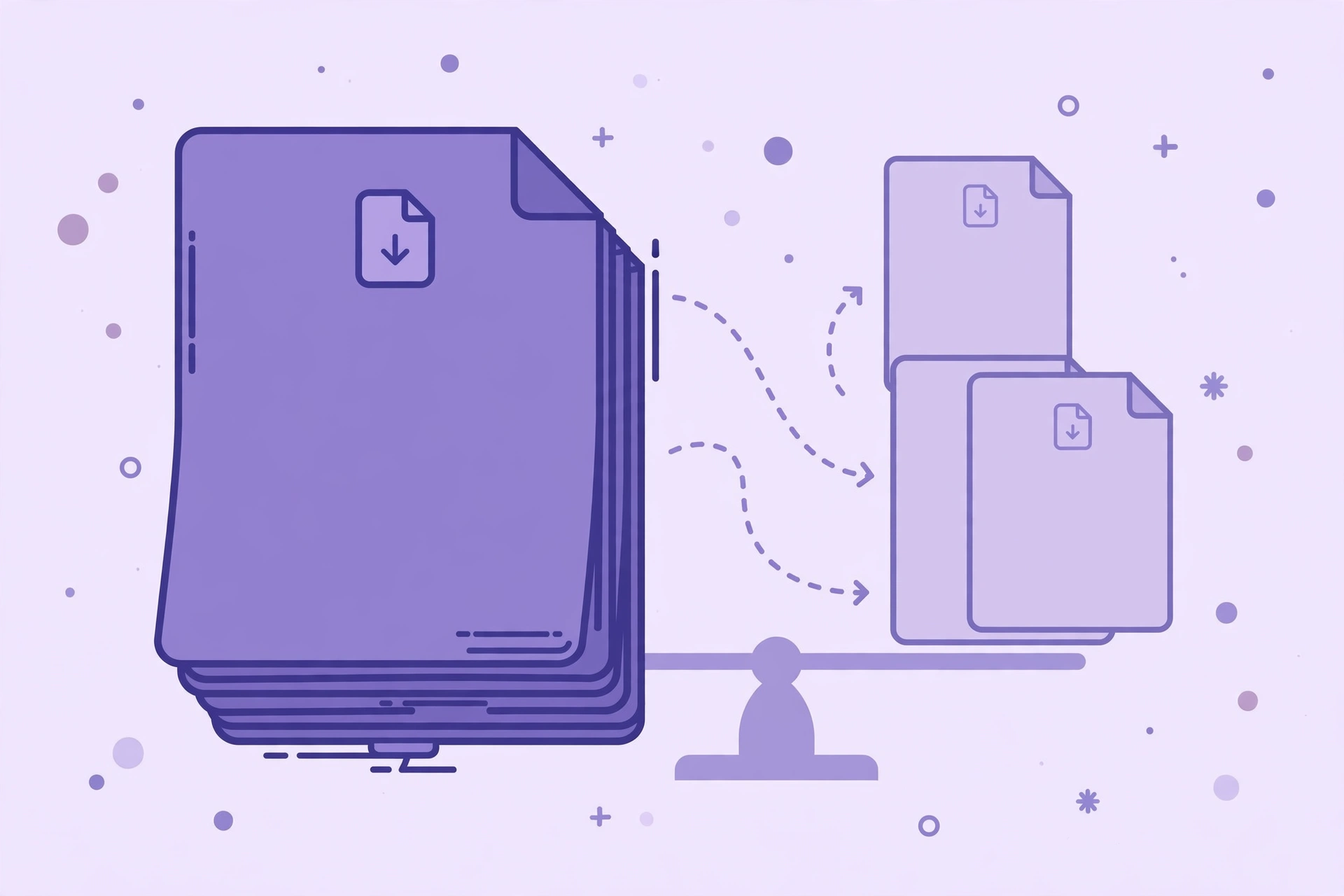
The MIME/base64 inflation is the trap: email encodes binary attachments as text, adding roughly 30% overhead. A 24MB PDF attached to a Gmail message becomes ~31MB in transit — over the 25MB cap — and Gmail rejects it. Rule of thumb: keep each emailed piece under 70–75% of the stated limit. For Gmail, that means ~18–19MB per piece, not 24.
Upload portals are kinder (no encoding inflation), but their caps are hard walls — a 20.1MB file on a 20MB portal fails. Aim 1–2MB under any stated cap.
- Gmail — stated 25MB, usable ~19MB: attachments inflate ~30% via MIME/base64 encoding.
- Outlook.com / Hotmail — stated 20MB, usable ~15MB: same encoding overhead.
- Corporate Exchange — often 10MB, usable ~7–8MB: admin-set, frequently lower than you think.
- Yahoo Mail — stated 25MB, usable ~19MB: same encoding overhead.
- Common upload portals — 10–50MB (varies), usable as stated: usually no encoding overhead, but hard caps.
Split vs compress: the decision tree
Splitting isn't always the answer. Run this decision tree first:
**Is the file mostly scanned images?** — Scans are already near their compression floor — re-compressing a 150-DPI scan buys you almost nothing and visibly degrades text. Split wins: divide into pieces under the limit. Illustrative example: a 60MB scan of a 300-page book compressed aggressively might reach 45MB (still over every email limit) while becoming unreadable. Split into four 15MB pieces instead — full quality, every piece emailable.
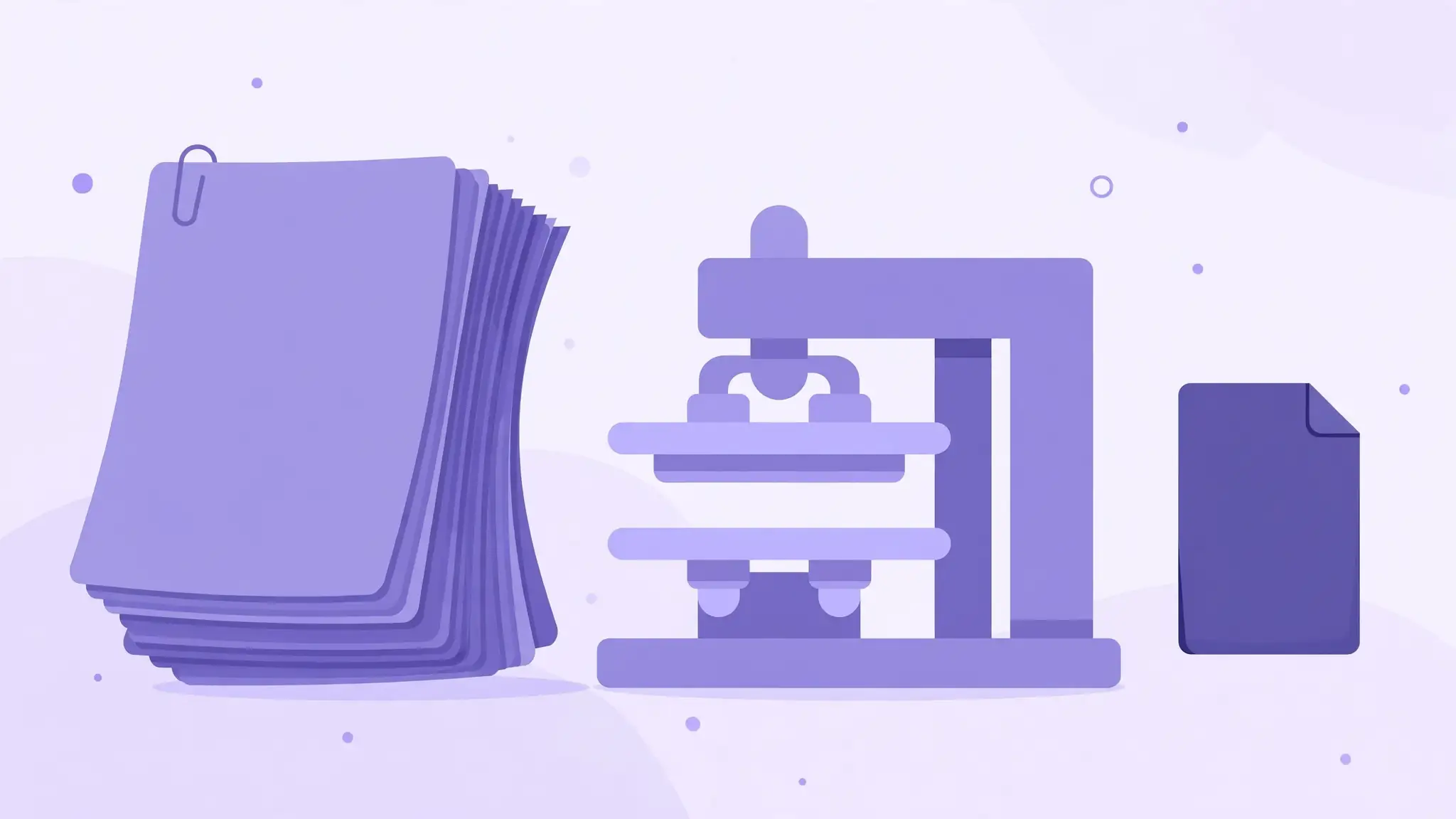
**Is the file mostly digital (text + vector graphics + some images)?** — Try compression first: digital PDFs often shrink 50–90% with zero visible change. Compress first; split only if it's still over. Illustrative example: a 30MB report with embedded photos might compress to 8MB — problem solved in one step, no splitting needed.
**Is it a mix, or are you unsure?** — Quick test: compress once and check the result. If it lands comfortably under your limit, done. If it's still 2× over, stop compressing (you're into visible-quality-loss territory) and split instead.
**Do you need the recipient to have the whole thing as one file?** — If yes: splitting still works — send the pieces and include reassembly instructions (see below), or send a cloud link instead. If the pieces are independently useful (chapters, sections, per-client pages): splitting is strictly better than a cloud link — each recipient gets exactly their part.
Three size-based splitting strategies
You rarely know "how many MB is page 47." These strategies get you under the limit without measuring every page:
**Strategy 1: Split by page count (the even division)** — Divide total pages by the number of pieces you need. A 300-page, 60MB PDF for Gmail (need pieces ≤19MB): 60MB ÷ 19MB ≈ 4 pieces → 75 pages each. Plan it as ranges: 1-75,76-150,151-225,226-300. Then verify: if one part is image-heavy (a photo appendix), it may still exceed the limit while a text-heavy part is tiny. Adjust boundaries toward the heavy section — 1-75,76-140,141-210,211-300 — until each piece fits. One verification pass beats three failed uploads.
**Strategy 2: Split by range/chapters (the natural division)** — Use the document's own structure: chapters, sections, or logical breaks. A 200-page manual becomes 1-40 (intro), 41-120 (core), 121-200 (appendix). This is the best strategy when recipients differ per part — send the client only their chapter, keep the appendix internal. The pieces are also self-explanatory, which makes the naming workflow (below) trivial. The tradeoff: natural breaks rarely align with size limits, so check each part's size and subdivide any piece that's still over.
**Strategy 3: Every-N-pages uniform chunks (the mechanical division)** — When content doesn't matter and only size does: cut every N pages. For the 300-page/60MB example targeting ~15MB pieces: 15MB is roughly a quarter of 60MB, so every 75 pages. This is the fastest strategy to plan — one division, one range pattern — and ideal for parallel processing (four reviewers, four chunks) or for feeding a document into systems with per-file page limits. The last chunk gets the remainder if pages don't divide evenly.
**A note on tooling:** some browser-based planners accept only explicit page numbers and ranges (no "every N pages" keyword) — ours is one of them. That's fine: compute the ranges once (1-75,76-150,…), type them in, and the part list verifies your arithmetic. For recurring every-N splits, a desktop tool with a real uniform-split mode saves the typing.
Estimating part sizes before you split
You don't need to measure every page. A rough estimate keeps you from planning four parts and discovering you needed six:
**The average-page heuristic.** Divide the file size by the page count: a 60MB, 300-page PDF averages 0.2MB per page. Seventy-five pages ≈ 15MB. It's rough — photo pages weigh far more than text pages — but it gets your first plan in the right neighborhood.
**Weight the heavy sections.** Flip through the document and note where the images live: the 20-page photo appendix might hold half the file's bytes. Give image-heavy sections fewer pages per part and text-heavy sections more. Illustrative example: in that 60MB/300-page book, if the photo appendix (pages 250–300) is 30MB on its own, plan it as two 25-page parts and give the remaining 250 text pages three ~83-page parts — five parts total, each safely under 19MB.
**Verify, don't trust.** After cutting, check each part's actual size before sending. Estimation gets you close; the file properties get you certain. If one part overshoots, subdivide just that part's range — the rest of the plan stands.
The workflow: plan, cut, verify, name
- Step 1 — Plan in the browser. Open https://all-done.xyz/tools/split-pdf. The page count is detected locally — a 300-page file never uploads anywhere, which matters when the document is a confidential report. Type your ranges from whichever strategy you chose. The part list shows every part with its page count; download the .txt plan.
- Step 2 — Cut with a real splitter. PDFsam Basic (free desktop), macOS Preview (Print → Pages → Save as PDF per range), or a trusted online splitter. Feed it the exact ranges from your plan.
- Step 3 — Verify sizes before sending. Check each output file's size against your target (70–75% of the email limit, or 1–2MB under a portal cap). If a piece is over, subdivide that piece's range further — you don't need to redo the whole plan.
- Step 4 — Name by content, immediately. manual-ch1-intro.pdf, manual-ch2-core.pdf — never part1.pdf through part4.pdf. Rename the moment each file downloads; an hour later the plan file is the only thing that remembers which part was which.
Reassembly: putting pieces back together
Splitting is reversible, and saying so in your email saves the recipient confusion:
- For the recipient: "Attached in 4 parts — to rejoin, use any free PDF merger (or Adobe Acrobat: Combine Files), adding them in numbered order." Most recipients already know how; the one-line instruction covers those who don't.
- For yourself: keep the original intact. Split from a copy, or keep the pre-split file archived. Re-merging is never quite as clean as never splitting — bookmarks and some metadata may not survive the round trip, depending on the tools.
- Alternative to reassembly: if the recipient just needs to read (not file) the document, skip reassembly entirely — numbered, content-named parts read fine in sequence.
When splitting isn't enough
Two edge cases where splitting alone doesn't solve it:
- A single section exceeds the limit. One 25MB photo appendix can't be split smaller than itself. Compress that piece (it's the one place compression is unavoidable), or host it on a cloud drive and link it.
- The portal wants one file, period. Some upload forms accept exactly one attachment. Then your options are: compress harder, remove non-essential pages first (then split is moot), or contact the portal administrator — a surprising number of "hard" limits have exception processes.