Merging PDFs looks simple — until it isn't
Combining PDFs is one of those tasks that sounds like a 30-second job and somehow eats your afternoon. You merge three documents and the pages come out in the wrong order. The result is 80 MB and won't send by email. Or the tool you used slaps a watermark on page one and demands payment to remove it. Every one of these is a known, avoidable mistake.
The searches tell the story: beyond 'how do I merge PDFs,' the most-asked questions are about reordering pages, file-size limits, and whether free online tools are safe for sensitive documents. This guide covers the clean 30-second method, then the five mistakes that cause nearly all the pain.
It's a universal task, too. Job seekers merge a resume, cover letter, and certificates into one application file. Accountants bundle twelve monthly invoices for a client. Students combine scanned assignment pages into a single submission. The method is the same every time — and so are the mistakes.
The 30-second method: merge online, no software
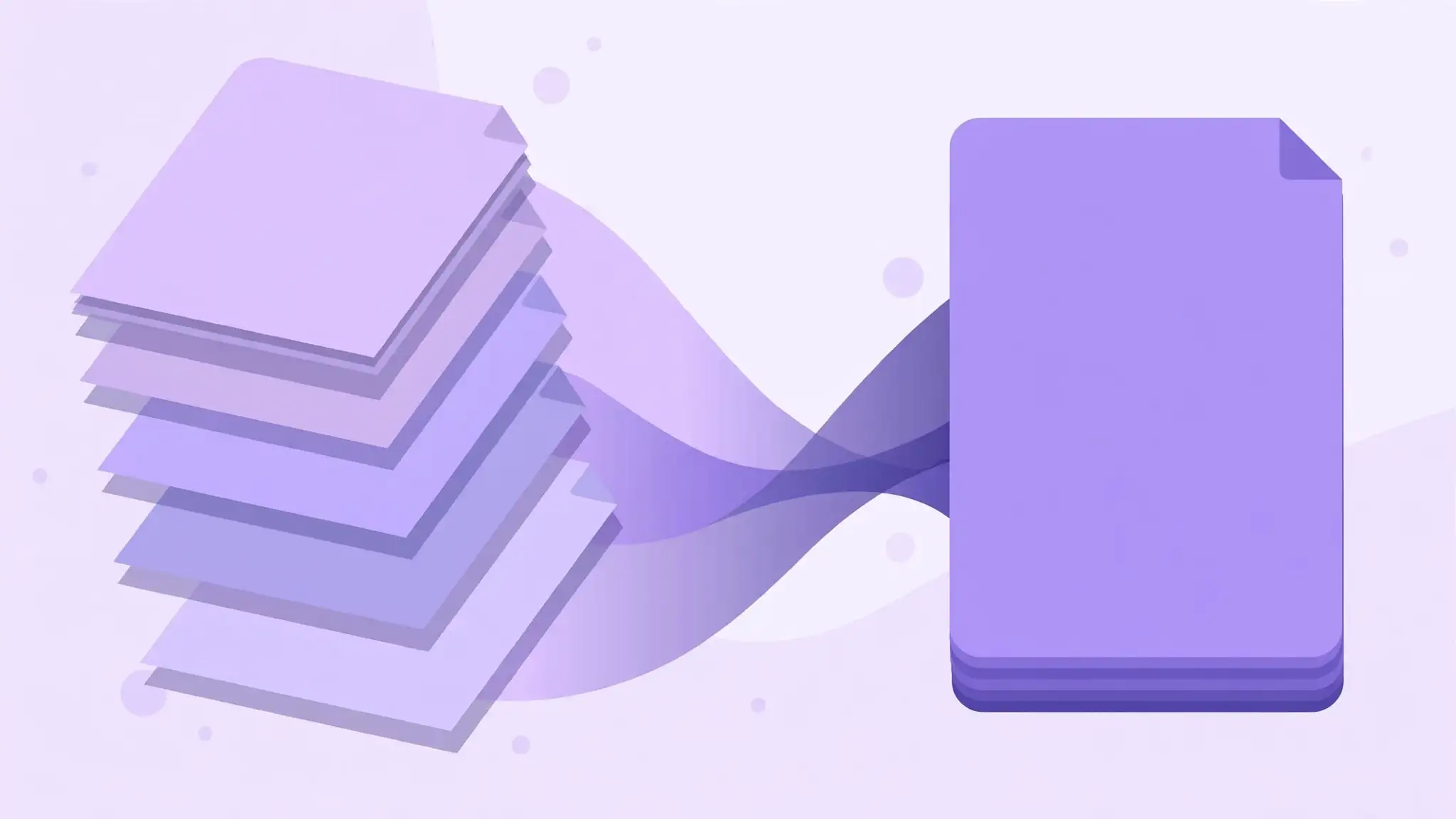
Open a free merge tool in your browser, drag in your PDF files, arrange them in the order you want, and hit merge. Download the combined file. That's the entire process — no installation, no account, no waiting for a desktop app to launch. Most merges finish in under a minute, even with a dozen files.
All Done's free Merge PDF tool works exactly this way: add as many PDFs as you need, drag to reorder them, and download the merged result. It runs in your browser, so nothing is uploaded to a server, and there's no signup standing between you and your file. It works on phones too — handy when someone emails you three attachments that should have been one document.
- Drag-and-drop upload — works with any number of PDFs.
- Drag to reorder files before merging.
- No signup, no watermark, processed in your browser.
Mistake 1: pages in the wrong order
The single most common merge disaster: the final document reads pages 1, 2, 5, 3, 4 — because the files were added in whatever order the file picker returned them. Always check the order in the preview before hitting merge. Good tools let you drag files into sequence; use that feature instead of trusting the upload order.
Pro move: rename your files with numbered prefixes (01-contract.pdf, 02-appendix.pdf) before uploading. Alphabetical sorting then matches your intended order automatically, and you end up with a sane archive afterwards.
Mistake 2: the merged file is too big to use
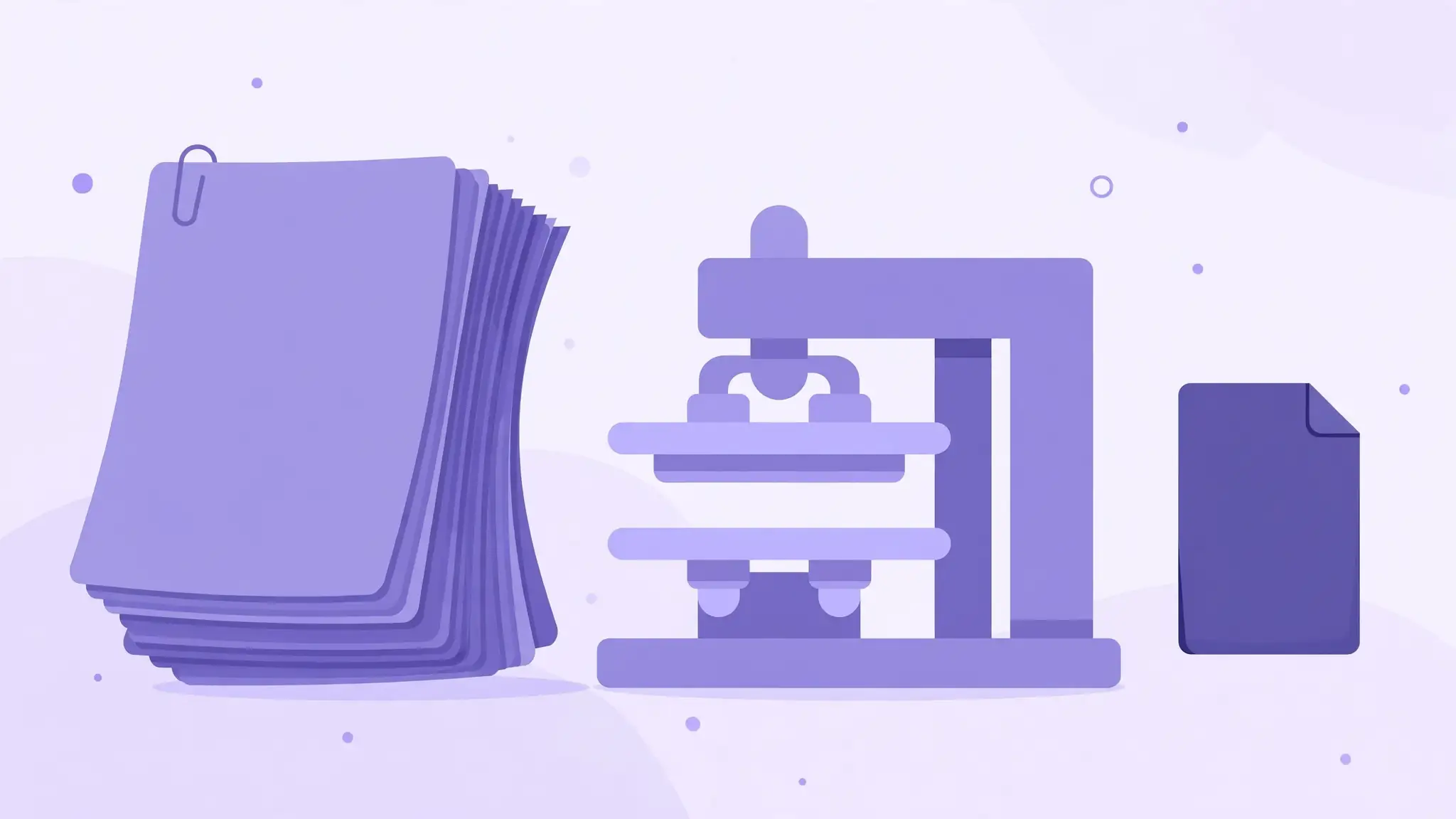
Three 25 MB scanned PDFs merge into a 75 MB monster that Gmail rejects (its limit is 25 MB) and WhatsApp chokes on. Check your total size before merging — and if it's bloated, compress the individual PDFs first, then merge the slimmed versions.
Scanned pages are the usual culprit: a 300-DPI color scan runs about 1 MB per page, so a 50-page scan is 50 MB before you even start. Running each file through a PDF compressor first can cut that by 70 to 80 percent with no visible difference on screen.
Mistake 3: trusting the wrong tool with your documents
Merging often involves sensitive material — contracts, bank statements, medical records, visa applications. Every file you upload to an online tool is a file you've handed to someone else's server. The fix isn't to avoid online tools; it's to pick honest ones.
Green flags: the tool processes files in your browser (nothing uploaded at all), or it states a clear auto-delete policy with files erased within the hour. Red flags: mandatory accounts, watermarks on free merges, and privacy pages that won't say what happens to your files. For truly sensitive documents, merging offline with a desktop tool remains the safest option. A quick rule of thumb: if the merge involves personal data — IDs, signatures, account numbers — prefer a tool that never uploads at all. Convenience is nice; not handing your passport scan to a server farm is nicer.
Checklist: before you hit merge
Thirty seconds of checks saves the re-do. Confirm the file order in the preview. Confirm the total size is emailable. Confirm you're using a tool you trust with the contents. And keep your originals — merging is non-destructive in good tools, but a backup habit costs nothing and saves everything when something goes sideways.
- Order checked in the preview — reads 1, 2, 3, not 1, 3, 2.
- Total size under your email limit (compress first if it isn't).
- Originals kept — never merge your only copies.
- Tool chosen: no signup, no watermark, clear privacy policy.