What actually makes PDFs huge
Before compressing, it helps to know what's eating the megabytes. In nine cases out of ten, it's images: full-resolution photos embedded at print quality in a document nobody will ever print. A single uncompressed photo can add 5 to 10 MB. The other usual suspects are embedded fonts — a full font family can weigh several megabytes — and scanned pages, which are just big pictures of text.
Text itself is tiny: a hundred pages of pure text is barely a megabyte. So when someone's 'small report' is 40 MB, it's never the words. Knowing the culprit tells you which compression approach will actually work, instead of blindly cranking a slider.
Lossy vs lossless: the quality tradeoff, simply explained
Lossless compression squeezes the file without changing a single pixel — smaller file, identical appearance. Lossy compression throws away image detail the eye probably won't miss, giving much bigger savings. For documents, the practical difference is stark: lossless might cut 10 to 30 percent, while lossy can cut 70 to 90 percent.
The right choice depends on the destination. On-screen reading and email? Lossy is invisible at sensible settings. Professional printing or archiving? Stick to lossless or light compression. A good compressor lets you pick the strength — or just use its recommended default, which is tuned for exactly this tradeoff.
Concrete numbers help. A 12 MB report full of phone photos might compress to 3 MB losslessly — fonts deduped, metadata stripped — or to 800 KB at strong lossy settings. Same text, visibly softer photos. For a job portal with a 1 MB cap, that tradeoff is usually worth it; for a photography portfolio, it is not.
- Lossless: smaller file, zero visual change — best for print and archives.
- Lossy: far bigger savings, tiny quality cost — best for email and screens.
- When in doubt, start with the tool's recommended default setting.
How to compress a PDF to 1MB: step by step
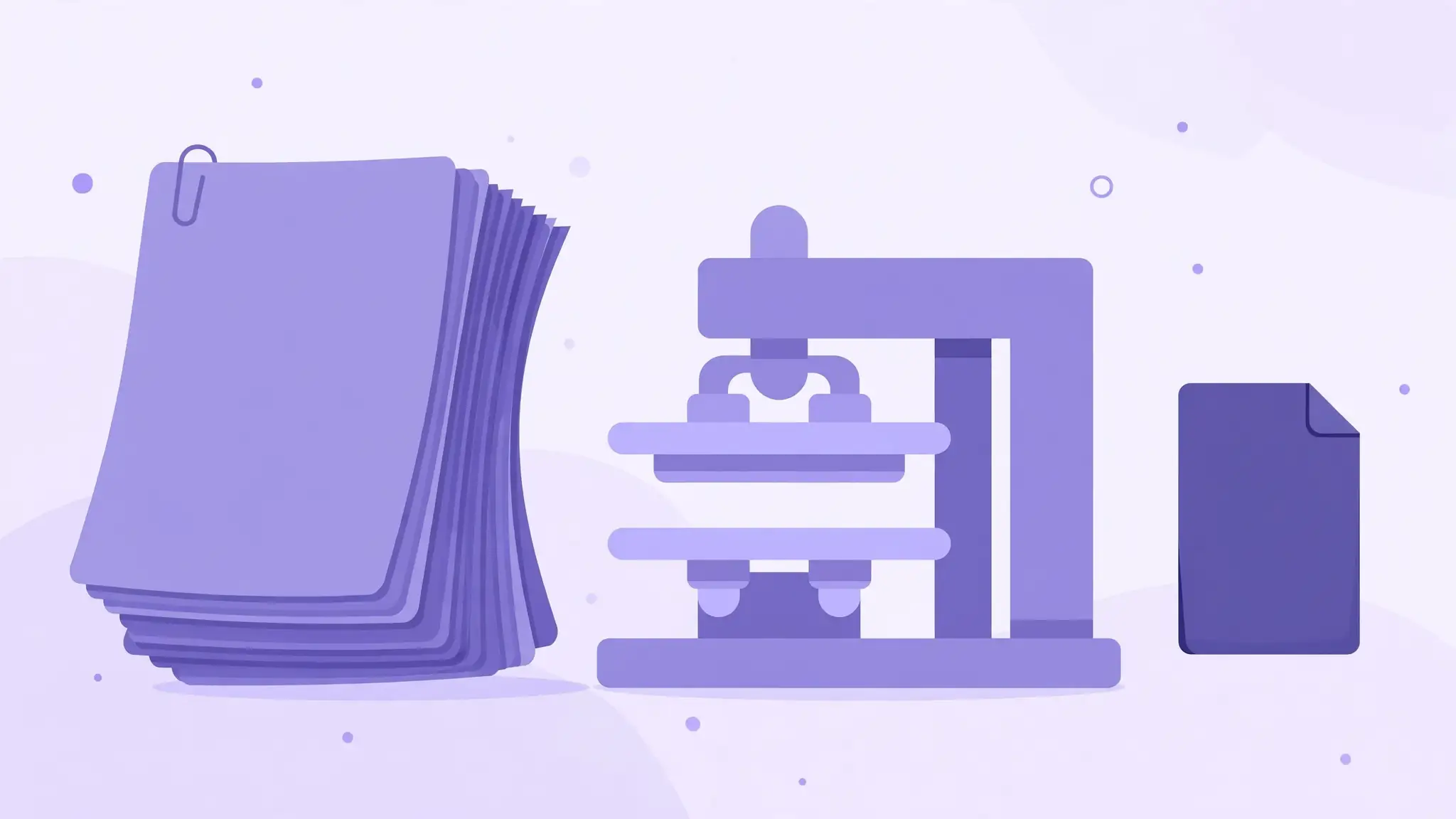
'Compress PDF to 1MB' is one of the most-searched PDF phrases on the internet — job portals, applications, and exam uploads love their exact limits. Here's the method: open a free PDF compressor, upload the file, choose a compression level (start with medium or recommended), and download the result. Check the size; if it's still over 1 MB, run it once more at stronger compression.
Reality check: a 50 MB scan won't hit 1 MB without visible quality loss, but a 5–8 MB document usually compresses under 1 MB cleanly. All Done's free Compress PDF tool runs in your browser — upload, compress, download, no signup — and shows you the before-and-after sizes so you know exactly what you saved.
- Start with medium compression; go stronger only if you're still over the limit.
- Two passes at medium often beat one pass at maximum for quality.
- Always check the result visually before submitting it to a portal.
Scanned PDFs need special handling
Scans compress differently from digital PDFs because every page is an image. The big wins: downsampling to 150–200 DPI (plenty for screen reading) and converting color scans to grayscale when color adds nothing — a grayscale scan is roughly a third the size of the color version.
One caution: heavy compression blurs small text in scans, making them hard to read and impossible to OCR later. If the scan needs to stay searchable or archivable, compress lightly. And if the scan is crooked or dirty, clean it before compressing — compression bakes flaws in permanently.
If your scanner software offers it, scan text-only pages directly to black-and-white rather than grayscale — a bitonal 200-DPI page is often under 50 KB, a fraction of its grayscale twin.
When compression isn't enough
Sometimes the math just doesn't work: a 200-page full-color catalog will never be 1 MB. In that case, split the PDF into parts, each under the limit — or go upstream and reduce image resolution in the source document before exporting the PDF. Fixing a 40 MB Word file's images takes two minutes and beats fighting the PDF afterwards.
Also check for easy wins: embedded videos or 3D objects (remove them), duplicate embedded fonts (a good compressor dedupes these), and blank pages from bad scanning. One blank page costs almost nothing, but fifty of them add up quietly.
Will the compressed PDF still be searchable?
Yes — compression doesn't touch the text layer. Your Ctrl+F still works, copy-paste still works, and screen readers are unaffected. What changes is image resolution, not text data. The one exception: if a tool rasterizes the whole PDF (converting pages to flat images), it destroys the text layer — legitimate compressors don't do this, but it's worth knowing why 'flatten everything' options should always be avoided.