Split, extract, separate: which do you need?
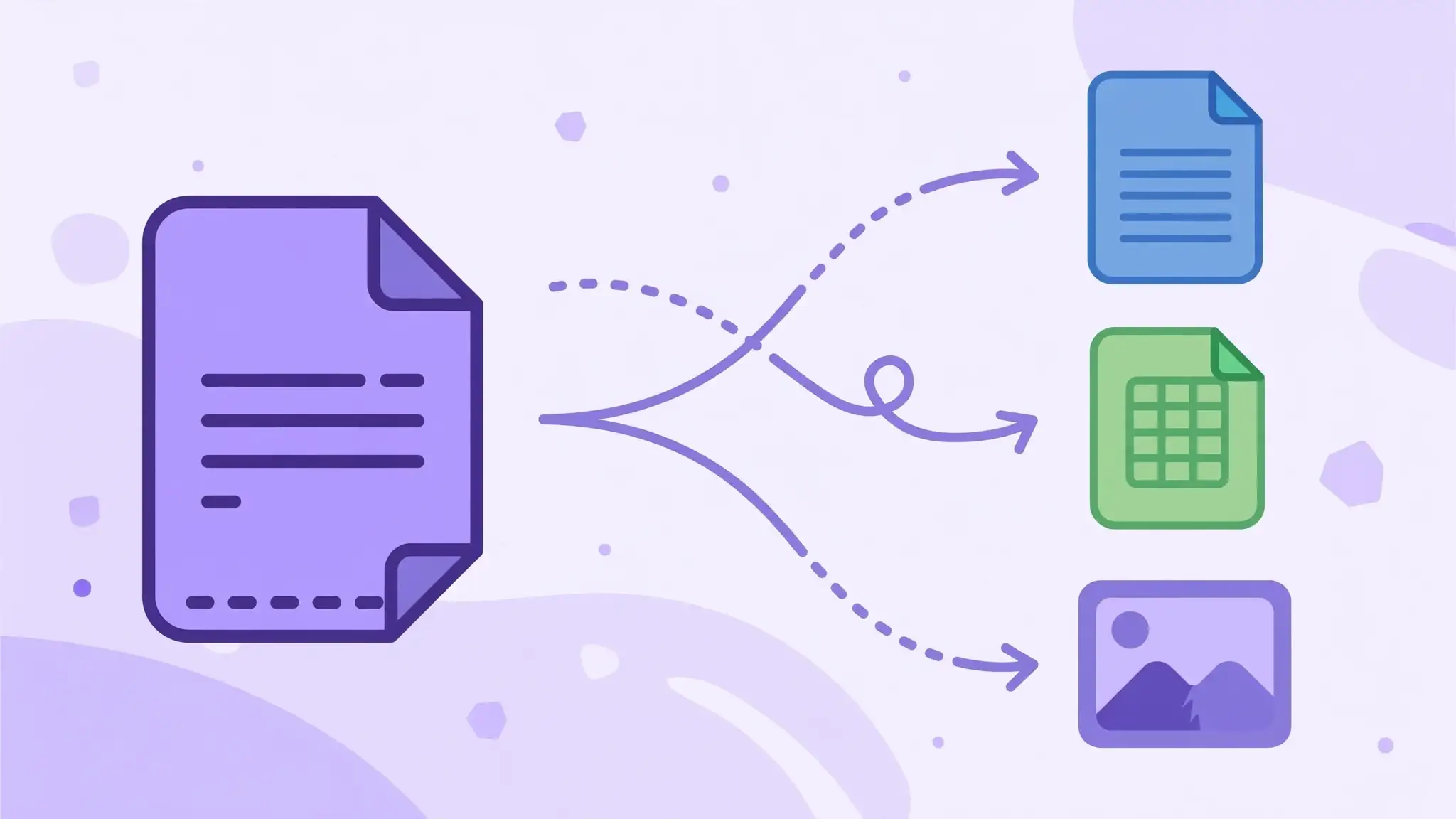
People search for this three ways — 'split a PDF,' 'extract pages from a PDF,' 'separate PDF pages' — and they mostly mean one of two jobs. Splitting divides a document into multiple files: chapters, sections, or individual pages. Extracting pulls specific pages out into a new file: pages 5–9 for a client, the signed page for your records.
Knowing which job you're doing matters because tools label them differently. This guide covers both: splitting by page range, extracting hand-picked pages, and breaking oversized PDFs into pieces small enough to email.
Real examples are everywhere. Teachers split a 300-page textbook PDF into one chapter per file for their class drive. Applicants extract just the signed offer letter from a 40-page onboarding pack. Anyone who has tried emailing a 60 MB scanned report has split it into three parts at least once. Same tool, same two jobs.
How to split a PDF by page range
The classic case: a 200-page ebook and you need chapters 3 and 4. Open a split tool, upload the PDF, choose the range option — enter 45–78, for example — and the tool produces a new PDF containing just those pages. Most tools also offer one-click presets: split into individual pages, or split every N pages.
Splitting by bookmarks is the power move for structured documents. If the PDF has a table of contents with bookmarks, some tools can split at each bookmark, giving you one file per chapter with zero manual page counting.
If your tool supports it, splitting by file size is another useful preset: 'split into 10 MB chunks' takes the arithmetic out of email limits entirely. Fewer tools offer it, but when yours does, it is the fastest path to emailable parts.
How to extract specific pages
Need pages 2, 7, and 12–15 but nothing else? Use extract mode: thumbnails of every page appear, you tick the ones you want, and the tool builds a new PDF from just those pages, in the order you selected them. The original file is left untouched.
All Done's free Split PDF tool handles both jobs — split by range or pick individual pages from thumbnails — right in your browser with no signup. Because it runs client-side, even a 500-page document never leaves your computer, which matters when you're extracting pages from contracts or financial reports.
- Tick individual page thumbnails to build a custom new PDF.
- Pages land in the new file in the order you selected them.
- The original document is never modified.
Breaking oversized PDFs into email-friendly chunks
The other big reason to split is size. A 60 MB scanned report won't go through email — most providers cap attachments at 20 to 25 MB. Splitting it into three 20 MB parts solves the sending problem without touching quality. Unlike compression, splitting is completely lossless: every pixel survives.
Name the parts clearly — report-part1.pdf, report-part2.pdf — and mention the total in your email ('3 of 3 attached') so nothing gets lost in transit. If the recipient needs a single file, they can merge the parts back together in seconds.
If the recipient can't merge files back together, most email clients display multi-part PDFs fine as separate attachments — just number them clearly and put 'Part 1 of 3' in the subject line. And remember that splitting never reduces total size: three 20 MB parts are still 60 MB on the recipient's drive. If storage rather than email limits is the problem, compression is the tool you want, not splitting.
Golden rule: back up the original first
Splitting is non-destructive in any decent tool — the original stays whole and you get new files. But 'any decent tool' is doing heavy lifting in that sentence. Before any page surgery, save a copy of the original with a clear name like contract-original.pdf. Disk space is cheap; reconstructing a lost document isn't. This applies double for scanned originals you cannot regenerate — a signed contract, a stamped certificate. Once the paper copy is gone, the scan is the document.
This applies to the outputs too: after splitting, open each new file and spot-check the first and last pages. A two-second glance catches the off-by-one range error — pages 45–78 when you meant 44–77 — before it reaches your client or your professor. Also confirm the page count matches what you asked for: 34 pages requested, 34 pages delivered.