Know your limit first
Do not compress blind — know the number you are aiming at:
The golden rule: if you do not know the recipient's limit, target under 10MB. That clears virtually every corporate server, which is where most bounces happen. (Apple's Mail Drop is the notable exception that sidesteps limits entirely — worth using if you are both on Apple Mail.)
- Gmail — 25MB attachment size limit
- Outlook.com — 20–25MB attachment size limit
- Yahoo Mail — 25MB attachment size limit
- Apple Mail — 20MB (with Mail Drop: up to 5GB via iCloud link)
- Corporate / Exchange servers — often around 10MB, set by the admin, varies widely
The 60-second fix
That is the whole process. The rest of this guide is for when it does not work on the first try — which is when understanding why helps.
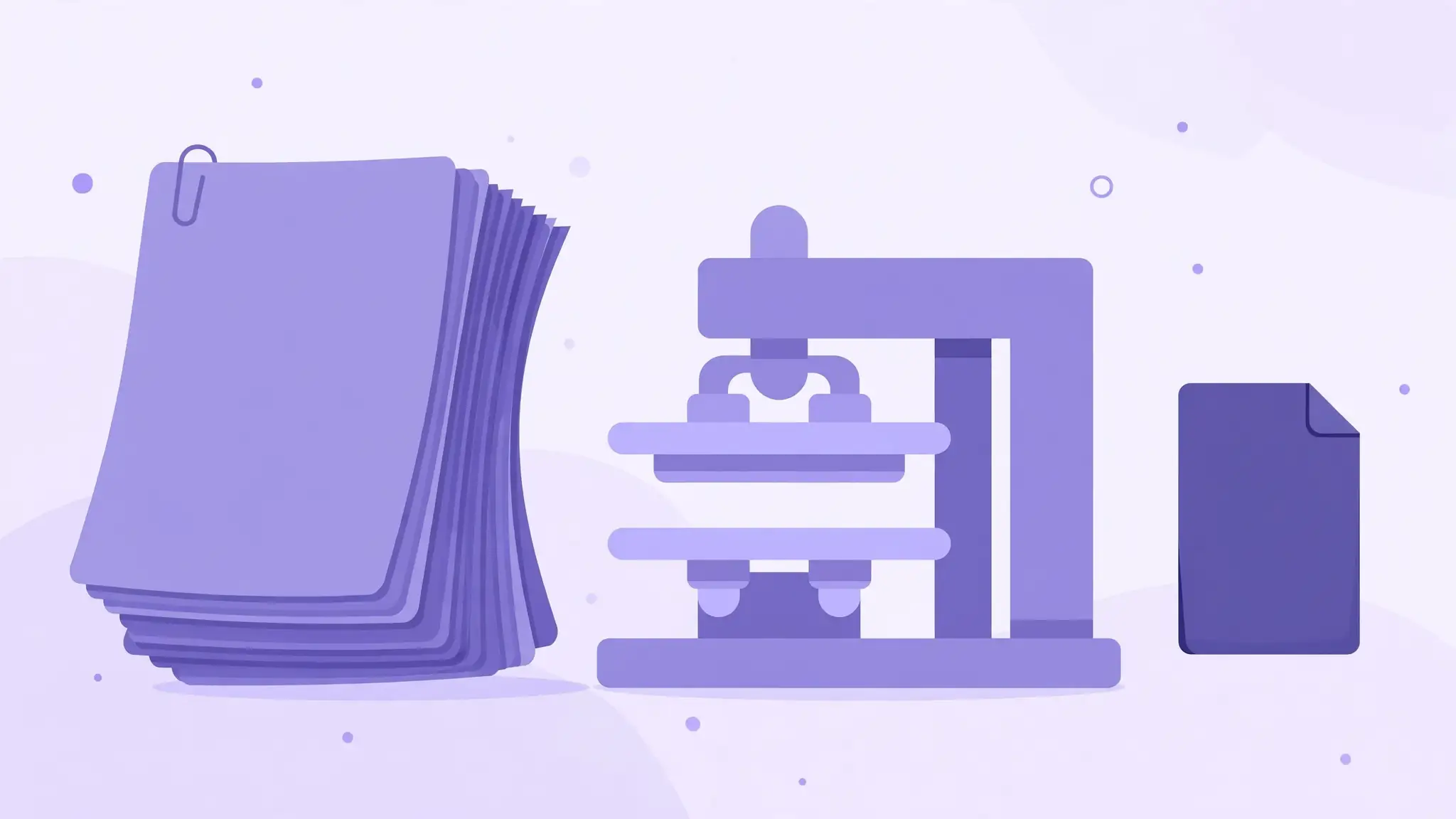
- Open the free compressor: https://all-done.xyz/tools/compress-pdf — no signup.
- Upload your PDF (drag and drop).
- Choose an email-friendly compression level — start moderate; you rarely need maximum.
- Download the compressed file and check its size before attaching.
- Attach and send. If it is under your target (ideally under 10MB), you are done.
Why your PDF is so big (it is the images, not the text)
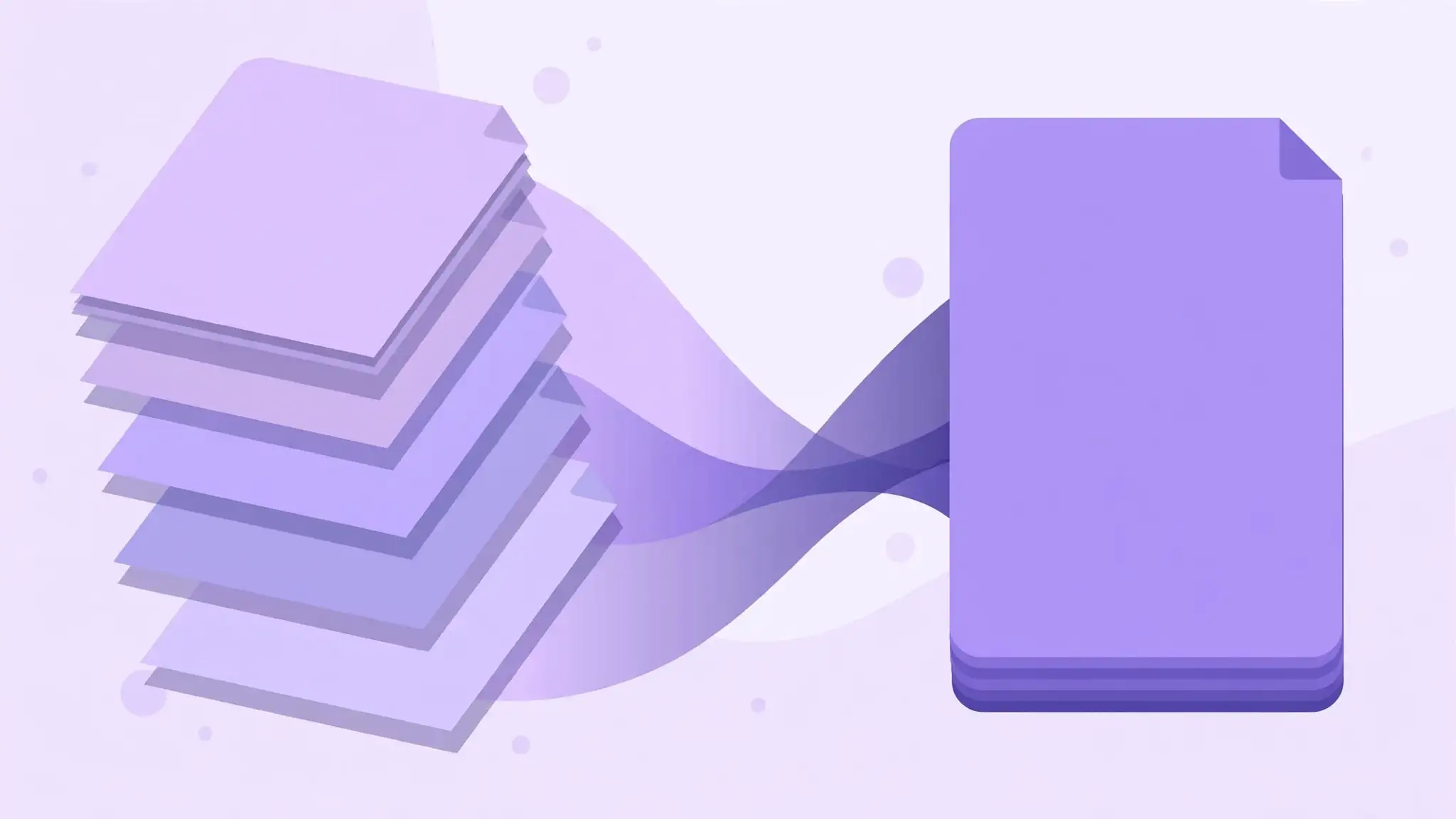
A 20-page text contract — all words, no photos — is typically around 1MB (illustrative). The same 20 pages scanned at 600 DPI can be around 50MB (illustrative). The difference is entirely images: text in a PDF is stored as tiny vector instructions, while each scanned page is a full photograph.
The usual culprits, in order:
Quick wins before compressing: scan at 150–200 DPI instead of 600 if the scan has not happened yet, delete dead pages, and remove embedded attachments. Then compress — you will get dramatically better results than compressing the bloated original.
- Scanned pages — the number one cause of giant PDFs, by far.
- Embedded photos at print resolution (300+ DPI) in a document nobody will print.
- Hidden attachments — files embedded in the PDF (paperclip icon) that you forgot were there.
- Unnecessary pages — duplicates, blanks, appendices nobody asked for.
Still too big? Split it
Sometimes one file cannot get small enough — a 200-page scanned report, for example. Do not fight physics; split it:
Splitting also helps the recipient: three 8MB attachments download and open faster than one 24MB monster.
- Compress first (smaller parts are easier to handle).
- Split into logical ranges — chapters, sections, or page ranges.
- Name the parts unmistakably: "Q3-Report — Part 1 of 3.pdf", "Q3-Report — Part 2 of 3.pdf", and so on.
- Mention the split in your email body ("attached in 3 parts due to size limits") so nothing gets lost.
The trap: why a 24MB PDF still bounces on a 25MB limit
This one confuses everyone. Your file is 24MB. The limit is 25MB. It bounces anyway. Why?
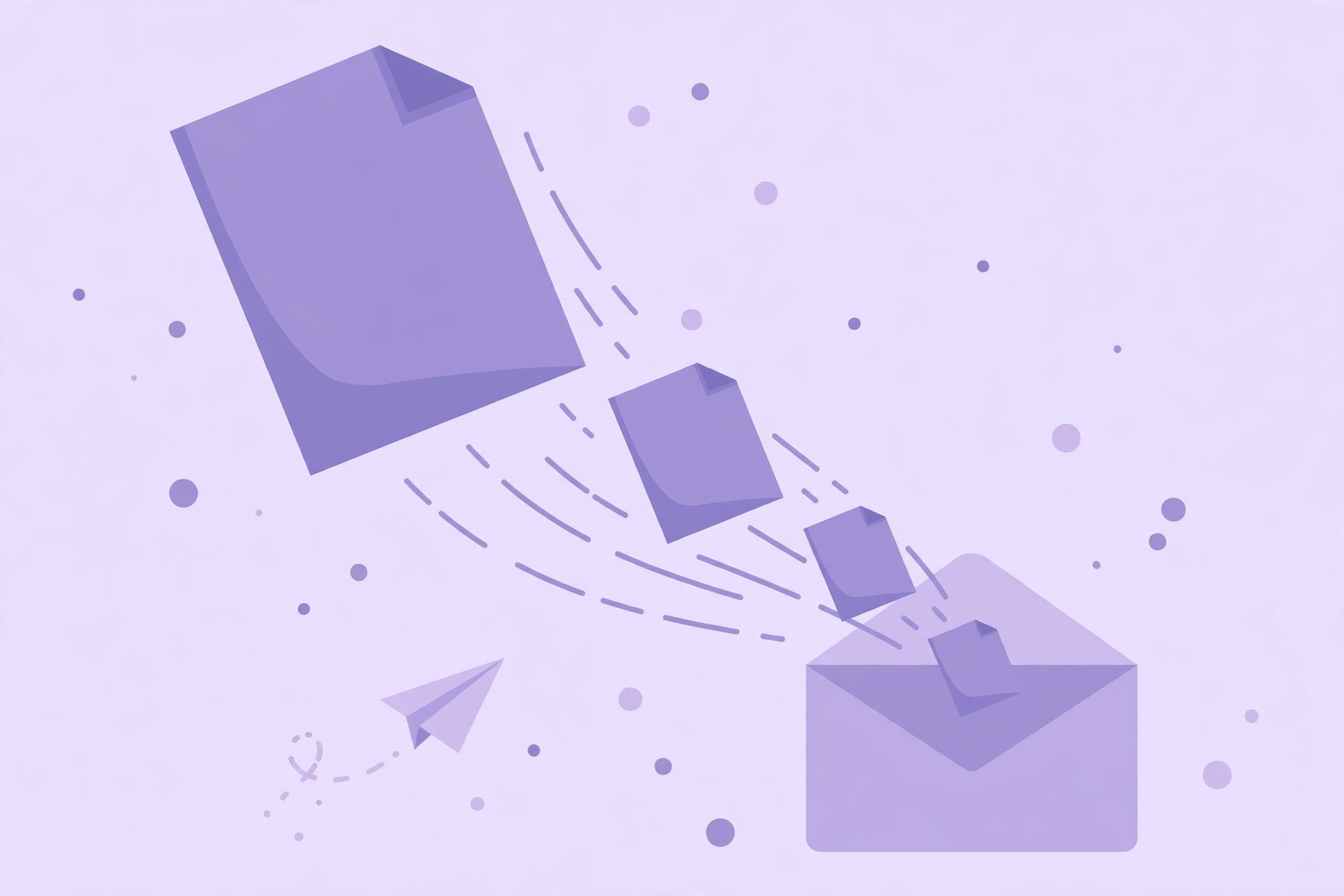
Because email was not designed for attachments. Your PDF gets MIME/base64-encoded for transit, which inflates it by roughly 33%. That 24MB file travels the wire as about 32MB — over the limit. The "25MB limit" applies to the encoded message, not your file.
- On Gmail's 25MB limit, keep attachments under about 18MB to be safe.
- The recipient's server may cap lower than yours — you cannot see their limit, which is why the "under 10MB" rule exists.
- When someone says "but it worked last time," the file was probably just small enough to survive encoding overhead. Margins matter.
Sending something sensitive? Read this first
Do not upload contracts, legal documents, medical records, or financial statements to a random "free PDF" site you have never heard of. Most online compressors copy your file to their servers — check the privacy policy for retention windows.
For sensitive files you have two safe options: a desktop app (nothing leaves your machine), or a compressor that processes the PDF locally in your browser — no upload, no server copy, nothing to delete afterward. That is how all-done's compressor works: https://all-done.xyz/tools/compress-pdf