The core problem: PDFs don't know what a paragraph is
This is the single fact that explains 90% of formatting loss. A Word document is flowed: it knows "this is a heading, this is a paragraph, this is a two-column table." A PDF is fixed-layout: it knows "draw the characters H-e-l-l-o at coordinates (72, 648) in 12pt Helvetica."
A PDF has no concept of paragraphs, headings, lists, or tables as structures. It stores positioned glyphs — letters placed at exact x/y coordinates on a page. When a converter turns that back into Word, it has to guess the structure: "these lines are close together and the same size, so they're probably one paragraph; this line is bigger and bold, so it's probably a heading."
Guessing works well on simple documents and falls apart on complex ones. Every formatting disaster below is a case of the guess going wrong.
The 5 real causes of formatting loss
**1. Fixed layout with no flow — the converter guesses structure.** **What it looks like:** paragraphs split mid-sentence, single lines stranded as their own "paragraphs," headings that didn't become headings. **Why it happens:** the converter groups glyphs into paragraphs using spacing heuristics. A PDF with generous line spacing, or text positioned in separate text boxes (common in PDFs exported from design tools like InDesign), defeats those heuristics. What was one paragraph in the author's mind becomes three paragraphs and a stray line in Word. **What helps:** nothing at conversion time — this is inherent. At cleanup time, it's the fastest thing to fix: turn on Word's paragraph marks (¶), delete the false paragraph breaks, and let the text reflow.
**2. Fonts not embedded — substitution changes everything.** **What it looks like:** the Word file uses a different font than the PDF, and because the substitute font has different character widths, line breaks fall in different places, tables widen, and pagination shifts. **Why it happens:** a PDF can either embed its fonts or reference them by name and hope the viewer's system has them. Many PDFs reference fonts without embedding. The converter then substitutes the closest available font — close in name, different in metrics. Even a 2% width difference per character cascades across a page into visibly different line breaks. **What helps:** check before converting — in most PDF readers, File > Properties > Fonts shows whether each font is embedded. If fonts aren't embedded, expect substitution. After conversion, select all and apply one clean font family deliberately rather than living with a patchwork of substitutes.
**3. Multi-column layouts — reading-order errors.** **What it looks like:** a sentence from the left column continues with a sentence from the right column. A newsletter that read perfectly in the PDF becomes word salad in Word. **Why it happens:** the PDF stores text in the order it was drawn, not the order a human reads. Converters sort glyphs into reading order using position analysis — top-to-bottom, left-to-right — but multi-column text breaks the simple rule. The converter reads straight across both columns as if they were one wide line, interleaving them. **What helps:** for multi-column documents, the honest answer is that auto-conversion rarely works well enough to trust. Extract the text, paste it as plain text into a fresh document, and rebuild the columns in Word yourself. It takes ten minutes and produces a correct document; fixing an interleaved conversion takes longer and you'll miss errors.
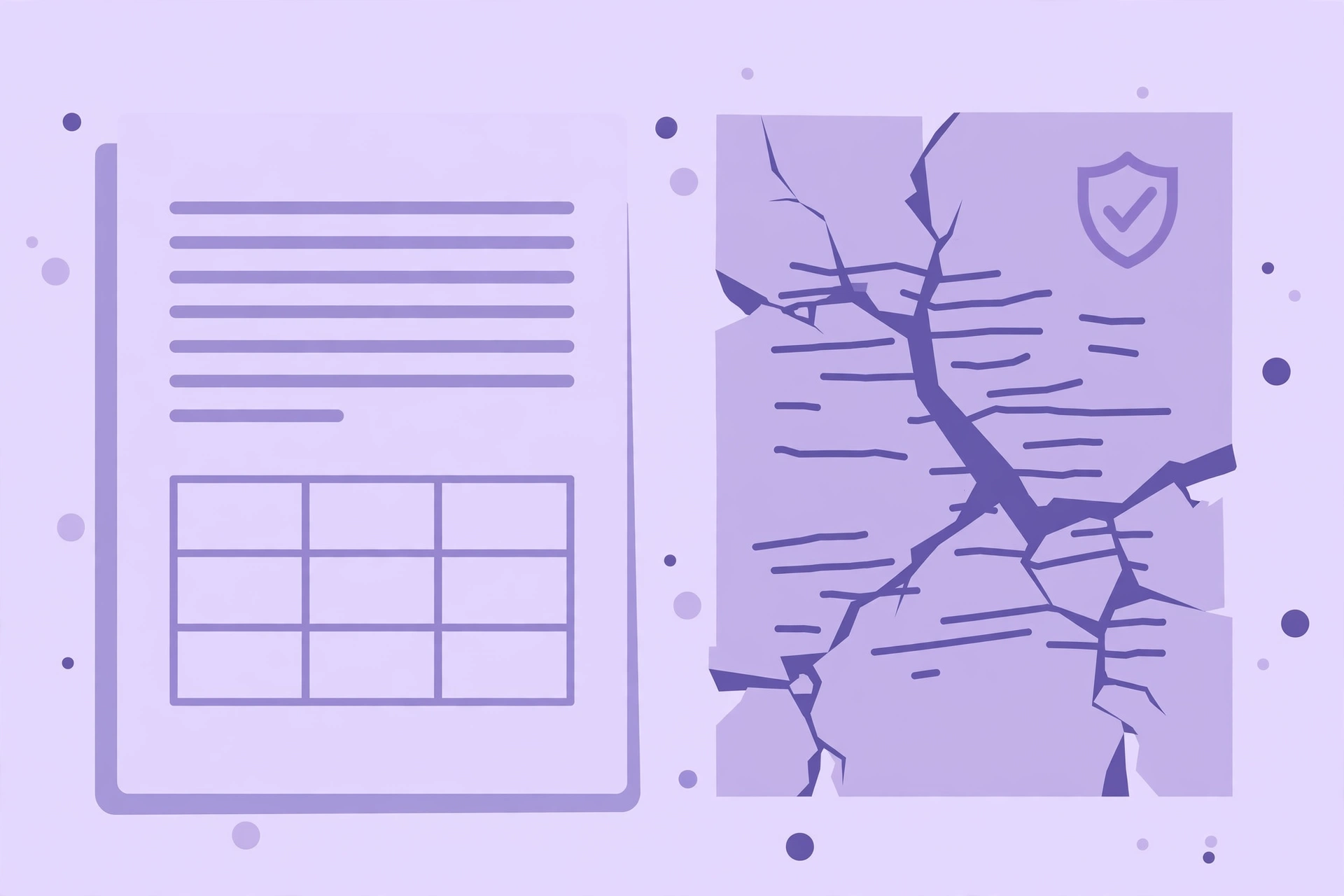
**4. Borderless tables — text soup.** **What it looks like:** a clean data table becomes a jumble of text with no columns, or columns merged and split at random. **Why it happens:** in a PDF, a table with visible borders gives the converter grid lines to detect — cell boundaries are explicit. A borderless table (increasingly common in modern report design) is just text at regular x-positions with no structural markers. The converter has to infer columns from horizontal alignment, and any slight irregularity — a wrapped cell, a merged header — breaks the inference. The result is "text soup": all the words present, none of the structure. **What helps:** this is the #1 case for the paste-as-plain-text-and-rebuild workflow. Copy the table's text out, paste it into Word, and use Convert Text to Table (Insert > Table > Convert Text to Table) with tabs or commas as delimiters. Rebuilding a 20-row table this way takes five minutes; repairing a mangled auto-conversion takes twenty and still looks wrong.
**5. Scanned pages — there is no text to convert.** **What it looks like:** the Word file contains images of pages, or blank pages, or a few garbage characters. **Why it happens:** a scanned PDF is photographs of pages — there are no glyphs, no fonts, no text at all, just pixels. A standard converter has nothing to convert; it embeds the images and calls it done. This isn't a formatting problem, it's a category error: you need OCR (optical character recognition), which reads text out of images. See our scanned PDF to Word OCR guide (https://all-done.xyz/blog/scanned-pdf-to-word-ocr-free) for the free OCR methods — Google Drive's built-in OCR is the best free option and it's barely documented.
The 60-second pre-check before converting
Before you convert anything, spend one minute on this checklist. It predicts your conversion quality with surprising accuracy:
This pre-check takes a minute and saves the classic mistake: converting a complex 40-page document, staring at the wreckage, and then deciding what to do.
- Can you select the text? Open the PDF, drag across a sentence. If you can't select it, it's a scan — stop and use OCR instead.
- Are the fonts embedded? File > Properties > Fonts in your PDF reader. Embedded fonts = better fidelity. Non-embedded = expect substitution.
- How complex is the layout? Single column, simple headings → expect a good conversion. Multiple columns, sidebars, pull quotes, borderless tables → expect to rebuild parts by hand.
- Does it have tables? Bordered tables convert acceptably; borderless tables are the highest-risk element in any PDF. Plan to rebuild them.
- How long is it? A 3-page letter with minor glitches is a 5-minute cleanup. A 60-page report with the same glitch rate is a multi-hour cleanup — at that scale, the paste-plain-text-and-rebuild workflow wins.
The post-conversion cleanup workflow (the one that actually works)
Forget trying to repair the converted document's broken styles — that's the slow path. The fast path:
**Step 1 — Paste as plain text into a fresh document.** Copy everything from the converted file, paste into a new blank Word document using "Keep Text Only" (Ctrl+Shift+V in most setups). This strips every broken style, false heading, and mangled table grid in one move. Yes, you lose the formatting the converter did get right. It's still faster.
**Step 2 — Fix paragraph breaks.** Turn on paragraph marks (¶). Delete false breaks so paragraphs reflow naturally. This is a 2-minute pass on most documents.
**Step 3 — Apply Word Styles.** Select each heading and apply Heading 1 / Heading 2. Select body text and apply Normal. This single step gives you a properly structured document — navigable, with a working table of contents — which is more than most auto-conversions produce.
**Step 4 — Rebuild tables.** For each table: paste its text, use Insert > Table > Convert Text to Table, set headers. Tedious but deterministic — unlike repairing.
**Step 5 — One proofread pass.** Read the document start to finish checking reading order, especially around columns, sidebars, and page breaks. This is where you catch the interleaved-column errors that spellcheck can't.
Illustrative timing: a 10-page report with moderate complexity takes roughly 15–25 minutes through this workflow, versus 45+ minutes fighting the converted file's broken styles — and the rebuilt version is cleaner. (Illustrative; your mileage depends on the document.)
When to give up on auto-conversion
Auto-conversion is the wrong tool when:
And the honest special case: if you only need the text, skip "conversion" entirely. A text extractor — like All Done's free PDF-to-Word tool, which runs 100% in your browser and downloads the extracted text as a .doc file — gives you clean, private text with no formatting to break in the first place. Its own disclaimer is upfront: "Basic text recovery — formatted PDFs and image-only scans may not extract cleanly; for perfect conversion use desktop software." For quote-gathering, research notes, or contract text you need to search, extracted text is the deliverable — and because nothing uploads, it's the safest option for sensitive documents: https://all-done.xyz/tools/pdf-to-word
- The PDF is a scan. No converter fixes this; use OCR.
- The layout is a design piece (brochure, magazine spread, annual report with heavy graphics). These were laid out by a designer in InDesign, not structured as a document. No converter reconstructs design intent. Extract the text and rebuild, or accept the PDF as-is.
- You need pixel-perfect fidelity (legal filings, print-ready documents). Conversion is lossy by nature; if the output must match exactly, don't convert — work from the source file or the PDF directly.
- The document is long AND complex. The cleanup cost scales with both. Past ~30 pages of complex layout, rebuilding from extracted text is faster than converting and repairing.
The bottom line
Formatting loss isn't a bug — it's what happens when software reverse-engineers structure that was never stored. The 60-second pre-check tells you what you're dealing with; the plain-text rebuild workflow is the fastest cleanup for anything complex; and knowing when to abandon auto-conversion (scans, design pieces, long complex documents) saves more time than any converter feature. Aim for "clean text, quickly rebuilt" rather than "perfect conversion," and PDF-to-Word stops being frustrating.