Start with the end: pick the right output format
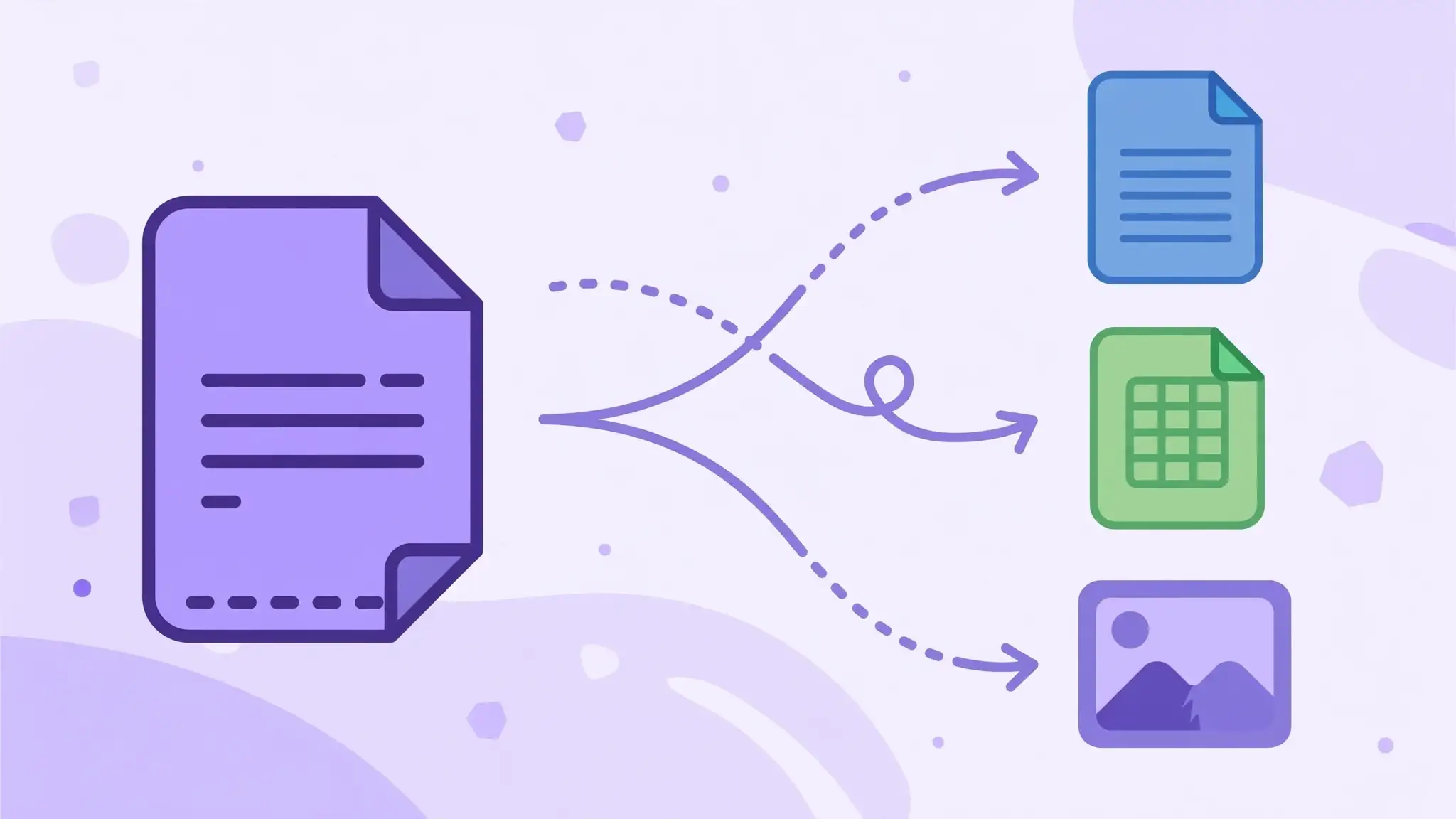
Most people open a converter, pick 'PDF to Word' on autopilot, and then fight the result. But the right output depends entirely on what you'll do next. Editing the text? Word. Analyzing numbers in tables? Excel. Dropping a diagram into a presentation? JPG or PNG. Rescuing a lost slide deck? PowerPoint. Each format preserves different things — choosing correctly is half the battle.
Quick decision guide: text-heavy documents go to Word (.docx); tables and data go to Excel (.xlsx); single pages as images go to JPG or PNG; full slide decks go to PowerPoint (.pptx); maximum compatibility goes to plain text (.txt). All Done's free Convert PDF tool covers all of these outputs in one place — no signup, right in your browser. When none of these fit — say you need the raw text for a translation tool — plain text (.txt) strips everything but the words, which is also the smallest possible output.
- Text to edit → Word (.docx)
- Tables and data → Excel (.xlsx)
- Pages as images → JPG / PNG
- Slide decks → PowerPoint (.pptx)
Native vs scanned: the check that decides everything
Open the PDF and try selecting a sentence. Selectable text means a native PDF — the converter works with real text data and formatting survives well. Unselectable means a scan — pictures of pages — and you'll need OCR (optical character recognition) to get editable text at all.
This single check explains most conversion disappointments. Running a scan through a non-OCR converter produces a Word file full of images; enabling OCR mode produces actual text. OCR accuracy tracks scan quality closely: clean 300-DPI scans convert well, while crooked phone photos will need proofreading afterwards.
Why conversions lose formatting (and how to fix it)
A PDF stores where every character sits on the page; it doesn't store 'this is a heading' or 'this is a two-column table.' The converter must reverse-engineer structure from positions — and complex layouts are genuinely hard to infer. Multi-column text, nested tables, and text wrapped around images are where fidelity breaks down.
The fix is a five-minute cleanup pass, not a hunt for a better converter. Apply one consistent font throughout (this fixes substitution shifts), rebuild or tidy tables, delete header and footer text that leaked into the body, and find-and-replace double spaces and stray hyphens left by line breaks. That routine takes a converted document from 90 percent to essentially perfect.
Tables? Convert to Excel, not Word
This is the tip most guides bury: if your PDF is mostly tables — bank statements, reports, price lists — convert to Excel instead of Word. Word mangles tables into awkward text boxes; Excel preserves rows, columns, and often the actual numeric values, which you can then sort, filter, and run formulas on.
After conversion, check for merged cells and numbers stored as text (Excel flags these with a small green triangle) — a quick 'convert to number' fixes your calculations. For scanned tables, OCR-to-Excel tools exist, but verify every figure by hand: OCR misreads 0/O and 1/l in ways that silently corrupt data.
Images and slides: PDF to JPG, PNG, and PowerPoint
Need a chart from a report for your own slides? Convert the page to JPG or PNG at high resolution rather than taking a screenshot — you get cleaner edges and correct dimensions. PNG suits diagrams and text-heavy graphics with its sharp lines; JPG suits photographs with its smaller files.
Full slide decks convert to PowerPoint with editable text boxes more often than people expect — genuinely useful when the original .pptx is lost. Vector graphics usually survive as editable shapes; complex animations and transitions won't, so treat it as a content rescue rather than a pixel-perfect restore.
Free tools vs Adobe Acrobat: what you actually need
Acrobat is the gold standard and priced like it — a subscription for occasional conversions is hard to justify. For one-off and everyday conversions, free online tools match Acrobat on the common cases: native PDFs to Word, Excel, or JPG with good fidelity, no software installed, no account created.
Where paid tools still win: batch-converting hundreds of files, advanced OCR on poor-quality scans, and redaction or accessibility compliance workflows. If your need is 'convert this report by Friday,' free is plenty. If it's 'convert 500 archived scans into searchable text,' that's the paid tier's home turf — and knowing the difference saves you money either way.