The real attachment limits (and the inflation nobody mentions)
Every email provider caps attachment sizes, and the numbers are lower than people expect:
Why is the "safe target" smaller than the stated limit? Because of MIME encoding. Email was designed for text, so binary attachments get converted to text with base64 encoding before sending — and base64 inflates data by roughly 33%. A 25MB PDF becomes about 33MB of encoded message text, which sails past Gmail's 25MB message cap even though the file itself was "only" 25MB. The 25MB limit applies to the whole encoded message, not your file.
The rule of thumb: your PDF should be no more than about three-quarters of the stated limit. For Gmail's 25MB cap, that means roughly 19MB. For a corporate 10MB cap, roughly 7MB. And remember that many corporate limits are set by the recipient's IT department, not yours — you cannot see their cap, so when emailing a company address, the 7MB neighborhood is the safe zone.
- Gmail — stated attachment limit: 25MB; practical safe target for your PDF: keep under ~19MB
- Outlook.com — stated: ~20MB; safe target: keep under ~15MB
- Corporate Exchange / Office 365 — stated: often 10MB (set by IT); safe target: keep under ~7MB
- Yahoo Mail — stated: ~25MB (check current help pages); safe target: keep under ~19MB
The decision tree: compress, split, or link?
Your merged PDF is too big. You have three moves, and the right one depends on how far over the limit you are:
If you are a little over (say 22MB for Gmail's 25MB cap): compress. A single compression pass will usually shave 20–50% off a scan-heavy PDF with no visible difference, which is more than enough to get under the line. This is the fastest fix and keeps everything in one file.
If you are way over (say 60MB for a 10MB corporate cap): split. No reasonable compression pass turns 60MB into 7MB without destroying the document. Split the merged PDF into logical parts — Part 1, Part 2 — and send them as separate attachments across one or two emails. Each part stays under the cap, and nothing gets degraded.
If the recipient just needs to read it (not file it): send a cloud link. Upload the merged PDF to Google Drive, Dropbox, or OneDrive and email the link. No size limit applies to the email itself, the recipient always gets the full-quality file, and you avoid the compression question entirely. The tradeoff: some formal processes (visa applications, court filings, job portals) require an actual attachment, not a link. Check the recipient's requirements first.
If it is borderline and formal: compress first, and only split if compression cannot get you there. One clean file beats two partial ones for anything official.
The merge-first-then-compress workflow
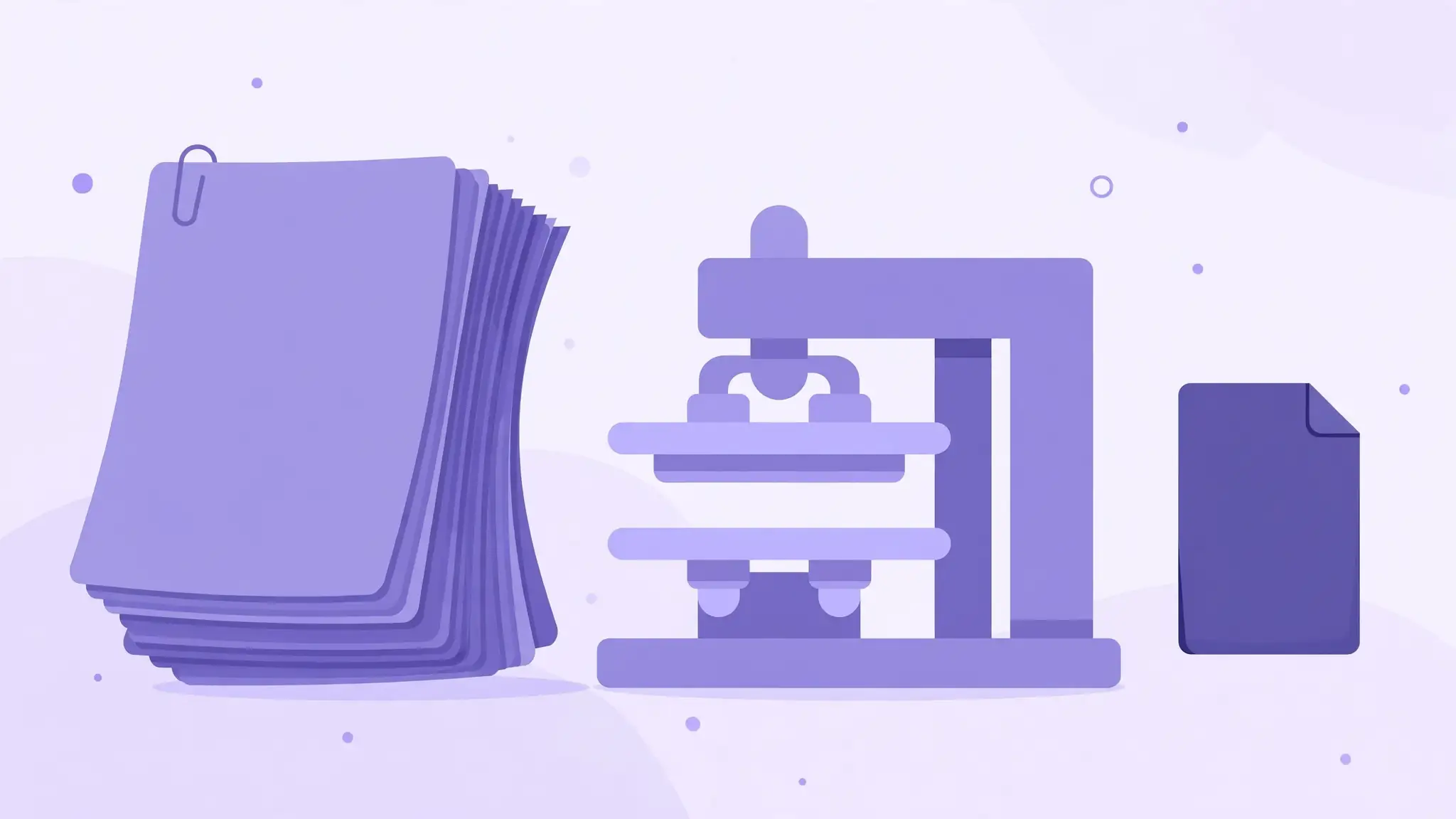
When compression is the answer, order matters: merge first, then compress the merged result. Compressing five files individually and then merging works too, but it is five times the fiddling for the same outcome. One merge, one compression pass, one verification.
- Step 1 — Merge in final order. Open https://all-done.xyz/tools/merge-pdf and add your PDFs in the order you want them to appear in the final document — merge order follows upload order, so plan the sequence before you start (cover page first, supporting documents after). You need at least two files, and the stated total limit is 20MB across all files. Click "Merge PDF Documents." The green "PDFs merged successfully! Your download has started." banner confirms it, and the merged file downloads automatically. Because this merger does not re-compress anything, your merged file is the full-quality combination of the originals — the ideal starting point for a deliberate compression pass.
- Step 2 — Check the merged size against your target. Find the downloaded file and check its size (right-click → Properties on Windows, Get Info on Mac). Compare against your safe target from the table above: ~19MB for Gmail, ~15MB for Outlook.com, ~7MB for corporate addresses. If it is already under, you are done — attach and send.
- Step 3 — Compress the merged file. If it is over, run the merged PDF through a PDF compressor. Start at a moderate compression level — you rarely need maximum for email purposes — and check the result. The goal is the smallest file that still looks clean at normal zoom, not the smallest file possible. One pass is usually enough; if the file is still over after a moderate pass, go one level stronger rather than compressing the already-compressed output twice.
- Step 4 — Verify before attaching. Open the compressed file and flip through it: page order correct, text readable, images acceptable, nothing blank. Then check the size one final time against your safe target — remembering the base64 inflation. A 18MB file is fine for Gmail; a 24MB file is not, even though it is "under 25MB."
- Step 5 — Attach and send. Attach the final file. If your email client warns about size, believe it — the warning is usually measuring the encoded message, which is the number that actually counts.
Page-order planning: get it right before you merge
Because merge order follows upload order — and there is no working reorder control — a few minutes of planning saves a re-merge:
This matters doubly for email, because every re-merge followed by re-compression is another round of your time. Get the order right once.
- List the final document order on paper (or in your head for three files): cover letter, application form, ID, bank statements, supporting evidence.
- Rename files with number prefixes before uploading: 01-cover.pdf, 02-form.pdf, 03-id.pdf. Upload in that order.
- Glance at the queue before clicking merge. The file cards show the merge sequence; ten seconds of checking beats merging twice.
Why "just compress the originals" is worse
A tempting shortcut: compress each of the six PDFs first, then merge the small files. It works, but it is the worst version of the workflow for two reasons. First, it is six compression decisions instead of one — six chances to pick a level that is too aggressive. Second, you end up verifying six files instead of one. Merging first gives you a single document to evaluate: does this one file look right, and is it under the limit? One check, one decision. The only exception is when the unmerged total blows past the merger's 20MB stated limit — then compress the biggest individual files just enough to get under 20MB, merge, and do your real compression pass on the merged result.
When the recipient's limit is unknown
Emailing a company, a government office, or a university? You cannot see their incoming cap. Corporate mail systems commonly enforce 10MB, and some go lower. In that situation:
- Aim for under ~7MB to be safe across most corporate systems.
- Put the key information in the email body too — a two-line summary means the recipient gets the point even if the attachment bounces.
- If the file cannot be squeezed under 7MB without visible damage, split it and send numbered parts, or ask the recipient whether a cloud link is acceptable before sending.
- Never assume "it sent from my side" means "it arrived." Ask for confirmation on anything important.
The 5-minute pre-send checklist
Before you hit send on any merged PDF, run through this once:
Five minutes here saves the embarrassment of a follow-up "please ignore the previous email" message.
- Order — flip through the merged file; cover page first, everything in sequence.
- Completeness — page count matches what you expect; no blank pages, no missing sections.
- Readability — zoom to 150% on a text page and an image page; both clean.
- Size — under your safe target (~19MB Gmail, ~15MB Outlook.com, ~7MB corporate).
- Filename — descriptive, no spaces or special characters: Visa-Application-Smith.pdf beats merged-final-FINAL2.pdf.