Why merging should never damage your files
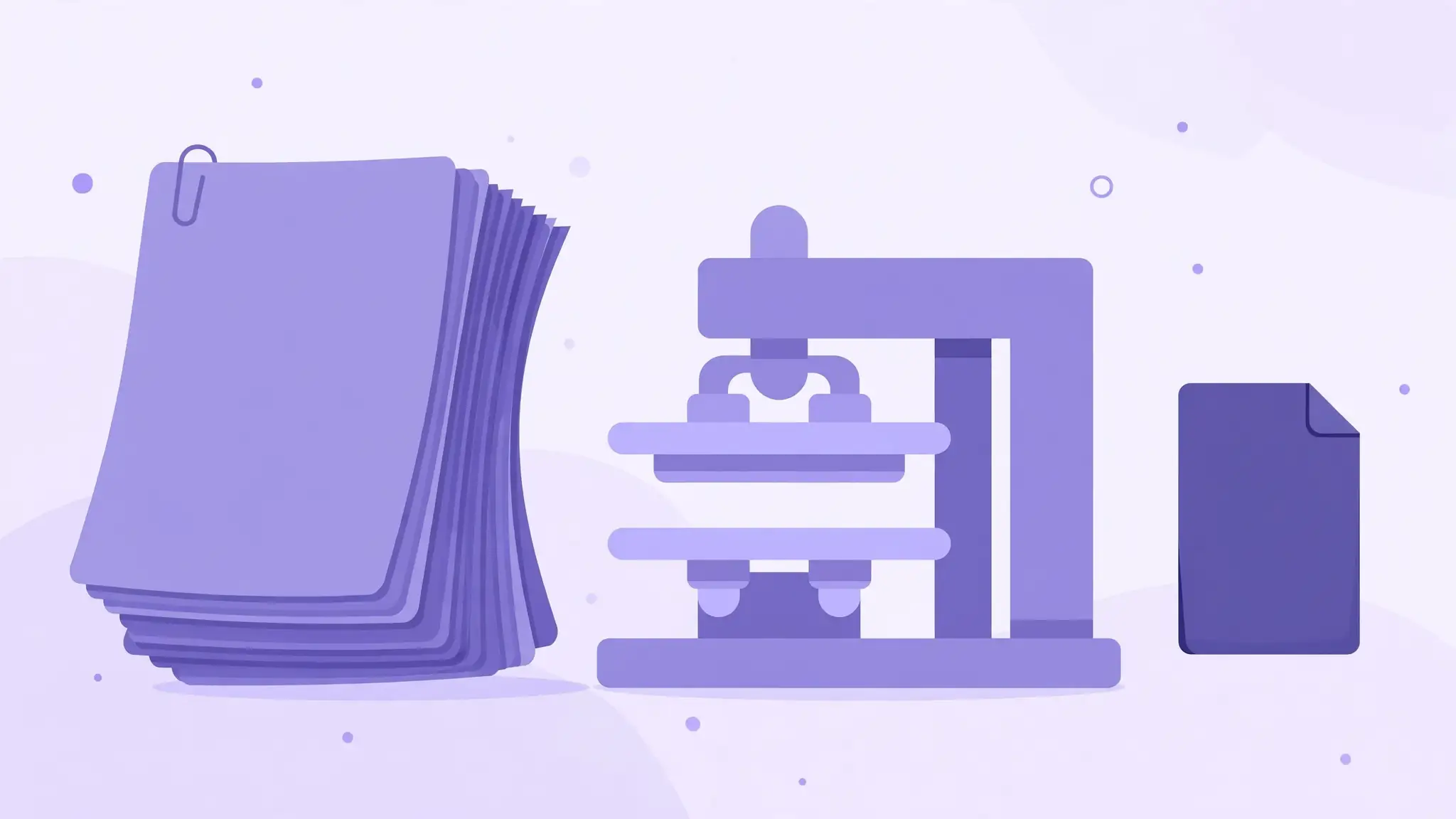
A quick bit of theory, because it makes everything else click. A PDF is not a picture of a document — it is a container of objects: text runs stored as font instructions, images stored as compressed image data, vector drawings stored as shapes. Merging PDFs is, at its core, an administrative operation: take the object lists from file A, file B, and file C, and write them all into one new file in order. Nothing needs to be re-drawn, re-encoded, or re-compressed. A clean merge is like stapling three printed reports together — the pages do not change because they are now in one stack.
So when a merged file looks worse, the tool did something extra on top of merging. Here are the three things tools do that quietly destroy quality.
The three quality killers nobody names
Killer 1: Rasterization — your pages get turned into pictures. Some mergers (and many "PDF tools" generally) handle your pages by rendering each one into a flat image and then building the merged PDF out of those images. The moment a page becomes a picture, two things are lost permanently: text stops being text (no more selecting, copying, or searching), and everything gets locked to whatever resolution the tool rendered at. A page rendered at 150 DPI and saved as a JPEG will look soft next to the original — forever. This is the single most common cause of "my merged PDF looks blurry," and it is entirely the tool's choice, not a property of merging. How to spot it: after merging, try to select a sentence of text with your cursor. If you cannot select text that was selectable in the original, the tool rasterized your pages.
Killer 2: Upload recompression — the server "optimizes" your files. Many server-side mergers run your files through a compression or "optimization" pass during processing — sometimes deliberately (to save their bandwidth and storage), sometimes as a side effect of their processing pipeline. Your 300-DPI images come back as 150-DPI JPEGs. The tool merged your files just fine; it also quietly threw away half their detail along the way. You will rarely see this disclosed in the interface — the merge "succeeds," and the damage is only visible when you zoom in. How to spot it: compare file sizes before and after. A clean merge of three files should produce a file roughly the size of the three originals added together (plus a tiny overhead for the merged structure). If the merged file is dramatically smaller than the sum of its parts, content was discarded.
Killer 3: The print-to-PDF trap. This one is self-inflicted and extremely common. Faced with several PDFs, people open each one and "print" it to a new PDF, then merge — or worse, they print all of them into a single PDF via the print dialog's page-range tricks. Virtual printing re-renders every page through the print pipeline: fonts get substituted or outlined, images get re-sampled to the printer's resolution, transparency gets flattened, and metadata is stripped. It is the most lossy possible way to combine PDFs, and it feels productive because the print dialog looks official. Rule of thumb: if your workflow involves a printer icon — real or virtual — you are degrading your documents. Merge the original files directly instead.
Which killer hit your file? A quick diagnosis
If you already have a degraded merged file and want to know what happened to it, match your symptoms:
In all three cases the fix is the same: go back to the original files and merge them with a tool that concatenates without re-encoding. Never try to "repair" a degraded merge by compressing or converting it further — each additional pass throws away more detail.
- Text not selectable + fuzzy at high zoom: rasterization (Killer 1). The tool rendered your pages as images. No recovery possible from this file — re-merge the originals with a clean tool.
- Text selectable but images noticeably softer, file much smaller than the originals combined: upload recompression (Killer 2). The text survived but the images were re-encoded. Again, re-merge from the originals.
- Fonts look subtly wrong, layout shifted slightly, file came from a print dialog: print-to-PDF (Killer 3). The print pipeline substituted fonts and re-sampled images. Re-merge the original files directly.
The 60-second losslessness test
Before trusting any merger with important documents, run this test with two ordinary PDFs. It takes a minute and tells you everything about how the tool handles your files:
If a merger passes all three, it is doing a true lossless merge. If it fails the first two, find a different tool — no setting will fix rasterization after the fact.
- Zoom test. Open the merged file and zoom to 400% on a page of text. Clean merge: text edges stay razor-sharp at any zoom, because the text is still stored as font instructions. Rasterized merge: text gets visibly fuzzy and pixelated as you zoom, because you are zooming into a picture of text.
- Select test. Try to select a sentence with your cursor and copy it. Clean merge: text selects and copies exactly as in the original. Rasterized merge: nothing selects — the page is one flat image.
- Size test. Add up the sizes of the originals and compare with the merged file. Clean merge: roughly equal (within a few percent for structural overhead). Recompressed merge: suspiciously smaller.
The clean method: merge without losing quality
The method is simple once you know what to avoid: use a merger that concatenates without re-encoding, keep everything local, and verify with the test above.
What about mixed sources — scans plus digital documents? Merging a 600-DPI scan with a digitally-created PDF is fine: a clean merge preserves each page exactly as it was, so the scan stays a scan and the digital pages stay digital. Quality problems with mixed merges come from the sources, not the merge — a blurry scan was blurry before you merged it. If a scan needs to be smaller, compress it before merging rather than hoping the merge will fix it (it will not — merging never improves quality, it only preserves or, with a bad tool, degrades).
What about different page sizes and orientations? A letter-size page, an A4 page, and a landscape spreadsheet can all live in one merged PDF — each page keeps its own dimensions. A clean merger does not resize pages to match. If your merged document looks inconsistent, that is the honest reflection of your source files; standardize them before merging if uniformity matters.
- Step 1 — Pick a non-destructive merger. You want a tool whose merge does not re-compress contents. all-done's merger states this explicitly in its FAQ: merging preserves quality without re-compressing anything. Just as important, it processes files entirely in your browser — no upload step where a server might "optimize" your files in transit.
- Step 2 — Add files in final order. Open https://all-done.xyz/tools/merge-pdf and add your PDFs in the order you want them in the final document (merge order follows upload order). You need at least two files; the stated limit is 20MB total across all files.
- Step 3 — Merge and auto-download. Click "Merge PDF Documents." A green "PDFs merged successfully! Your download has started." banner confirms it, and the merged file downloads automatically. There are no quality or compression settings to get wrong — which is exactly the point. Fewer settings means fewer ways to accidentally degrade your files.
- Step 4 — Run the 60-second test. Zoom, select, compare sizes. Confirm the merge is clean before you send the file anywhere.
"But my merged file is too big" — the size/quality confusion
A frequent misunderstanding: people assume a big merged file means something went wrong, and reach for a tool that makes it smaller — which is how they end up with a degraded file. Size and quality are separate issues. A clean merge of five 8MB scans is a 40MB file, and that is correct. If 40MB is too big for your purpose (email, upload portal), the answer is a deliberate compression step after merging — where you control the tradeoff — not a merger that silently degrades everything. Merge losslessly first; compress deliberately second, only if you need to.