The problem with sharing WiFi passwords
Every host knows the ritual: a guest asks for the WiFi, you recite a password full of capitals and symbols, they mistype it twice, and you both stare at a 'could not join' message. Cafés tape passwords to the counter where everyone photographs them; Airbnb hosts print them in the welcome book where they go stale.
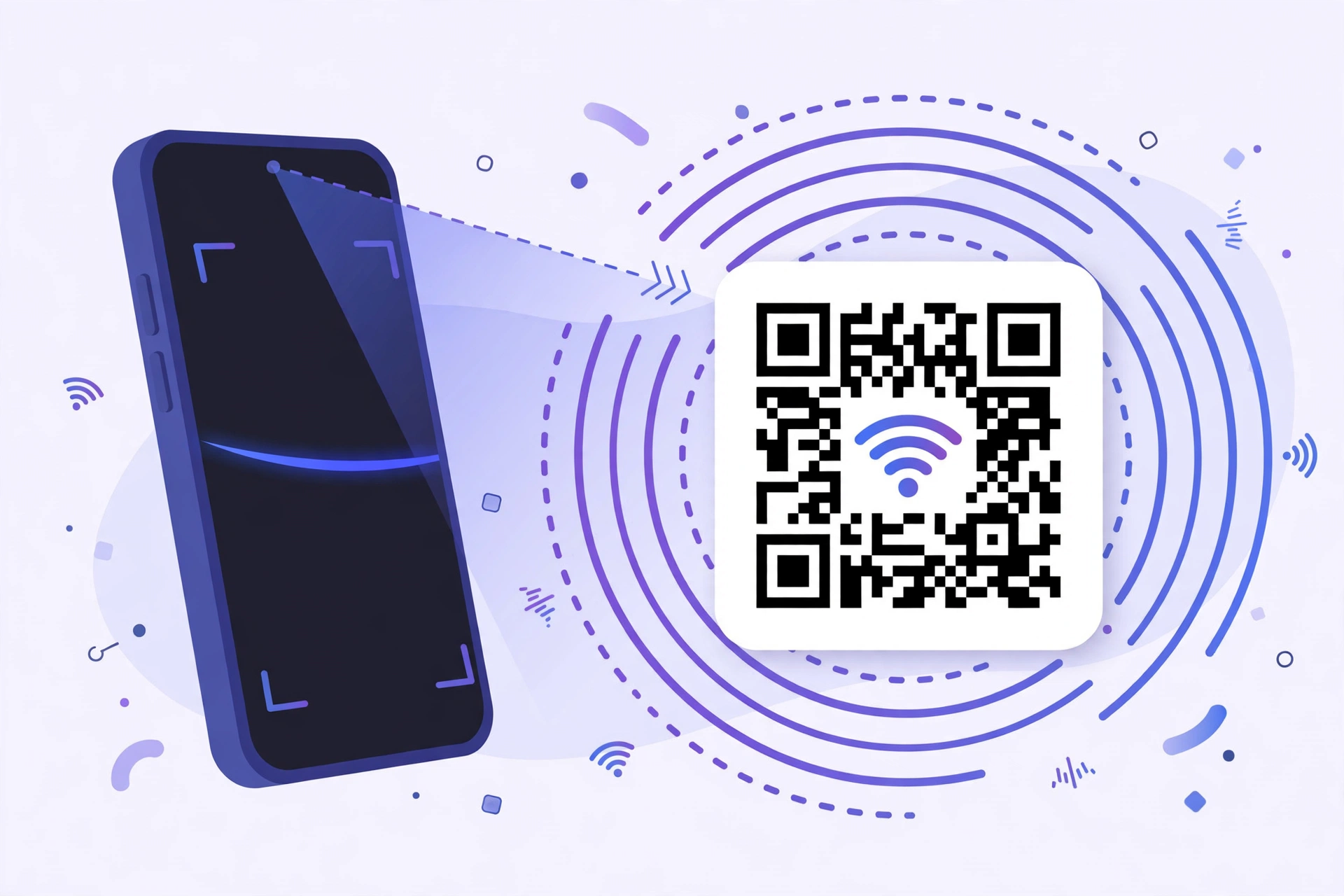
A WiFi QR code ends the ritual. The network name, security type, and password are encoded in the pattern — the guest points their camera at it and the phone offers to join. No typing, no misheard characters, no password lingering in the group chat.
Make one in under a minute
Open the QR Code Generator and switch to the WiFi tab. Type your network name (SSID) exactly as it appears — capitals, spaces, and all — choose the security type (WPA/WPA2 for most home routers, or none for open networks), and enter the password. The live preview shows the code as you type; download the PNG when it looks right.
Print it and put it where guests actually look: the fridge, the café counter, the Airbnb welcome binder. One code, permanent fix.
- Select the WiFi tab and enter the SSID exactly — it is case-sensitive.
- Pick the right security type (usually WPA/WPA2) and enter the password.
- Preview, download the PNG, and print it where guests will see it.
The gotchas that break WiFi QR codes
Most failed WiFi codes fail for boring reasons. The SSID is case-sensitive — 'HomeWiFi' and 'homewifi' are different networks, and routers display the exact spelling in their admin panel. The security type must match the router's setting; pick WPA/WPA2 unless you know yours is different. Special characters in passwords are fine, but copy the password from the router sticker rather than retyping from memory.
Hidden networks are the other classic failure: some phones won't auto-join a hidden SSID from a QR scan, or they join but drop. If your network is hidden, consider unhiding it or keeping a printed password as backup. And if your router broadcasts separate 2.4 GHz and 5 GHz names, generate the code for the one you want guests on.
- SSID spelling and capitalization must match the router exactly.
- Security type must match the router's setting — usually WPA/WPA2.
- Hidden SSIDs don't scan reliably on all phones; unhide or keep a backup.
- Always test-scan with a second phone before printing.
Do guests need an app to scan it?
Almost certainly not. iPhones have scanned QR codes straight from the Camera app since iOS 11, and Android phones since Android 10 — that's the overwhelming majority of phones in pockets today. The guest opens the camera, points it at the code, and taps the join prompt.
For the rare older phone, any free QR scanner app from the app store works. If you run a business with foot traffic, it's worth one line under the code: 'Point your camera at this code to join.'
Security note: put guests on a guest network
Be clear-eyed about one thing: a WiFi password inside a QR code is plaintext to anyone who photographs the printout. For home use that's usually fine — it's the same exposure as telling someone the password. But it means the code is only as private as the paper it's printed on.
The clean solution is a guest network, which nearly all modern routers support. Guests get internet without seeing your shared folders, printers, or smart-home devices, and you can change the guest password (and reprint one code) without touching your own devices. Treat the printed QR like a house key: convenient, but don't leave it where strangers wander.