Why do forms ask for an exact file size?
Many online forms put a hard limit on the photos you upload. A job portal might ask for a photo under 100 KB, an exam form might want a signature under 50 KB, and an ID application might cap uploads at 200 KB. Go over the limit and the form simply rejects your file.
The limit exists because these systems store millions of uploads. Small files keep their servers fast and their storage costs down — but that does not help you when your phone camera saves every photo at several megabytes.
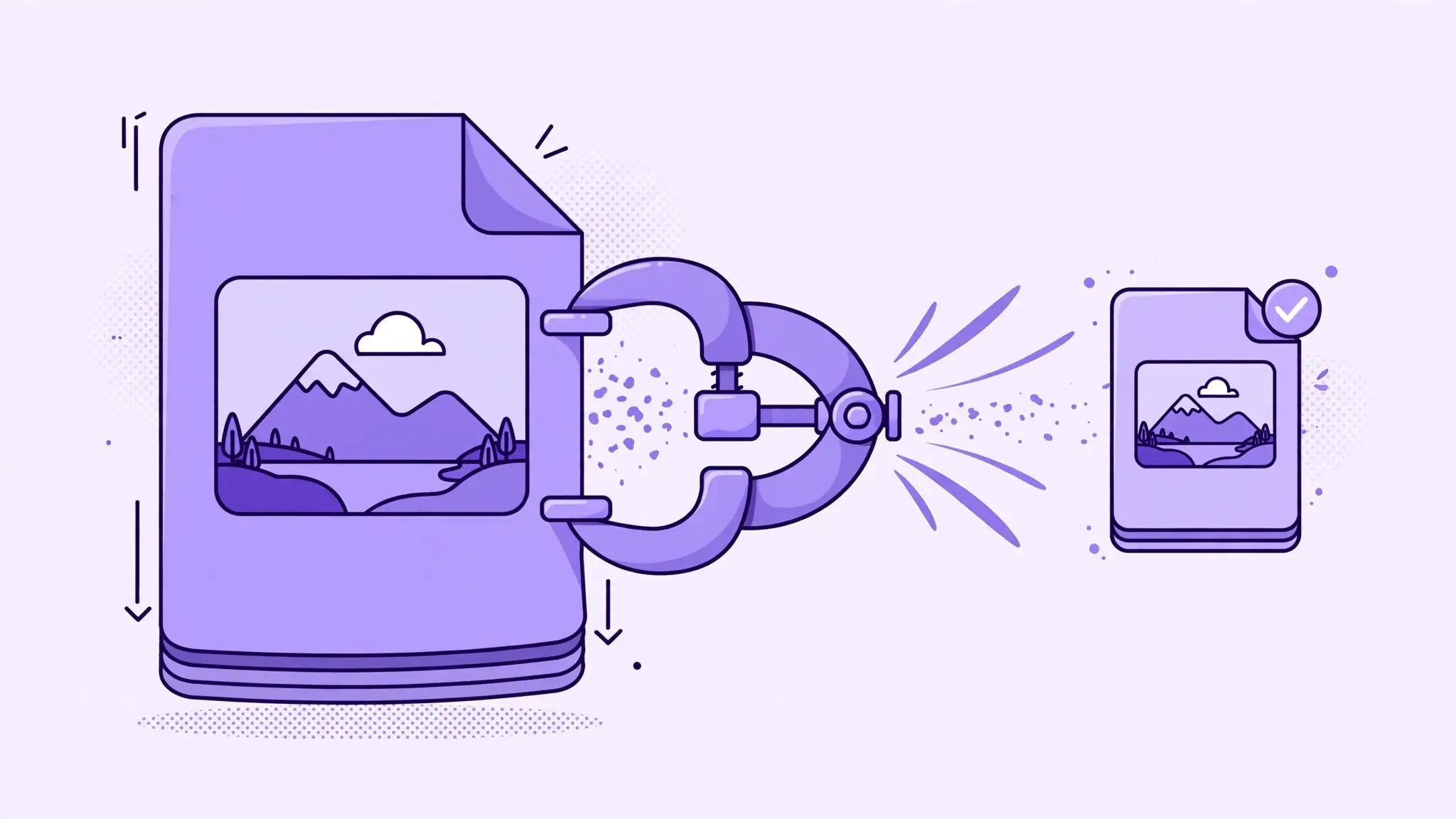
That is where exact-size compression comes in. Instead of guessing how much to shrink a photo, you pick the exact limit the form asks for and the tool produces a file that fits.
How to compress an image to an exact KB
Open the Compress Image to Exact KB tool and upload your photo. The file is processed in your browser, so nothing is sent to a server.
Pick your target size: under 20 KB, 50 KB, 100 KB or 200 KB. Choose the size your form asks for — if it says "under 100 KB", 100 KB is the right target.
Download the compressed photo. Open it and check that it still looks acceptable before you upload it to the form.
- Upload your photo in the browser — no signup needed
- Pick your target: 20, 50, 100 or 200 KB
- Download the file and check it before submitting
What happens to image quality?
Compression works by throwing away some detail from the image. The smaller the target, the more detail is removed — so a photo squeezed to 20 KB will look softer than the same photo at 200 KB.
For most form photos, that trade-off is fine. A passport-style headshot at 100 KB still looks clear, because faces compress well. A detailed landscape photo at 20 KB will look noticeably softer, but it will still be recognisable.
The practical rule is simple: always use the largest size your form allows. If the limit is 200 KB, do not compress to 20 KB — you are giving away quality for nothing.
Picking the right target size
Match the target to the form, not to your guess. The form tells you the limit — use it exactly. "Under 100 KB" means 100 KB is the right choice, and "maximum 50 KB" means 50 KB.
If the form gives a range, such as 20 KB to 200 KB, pick something in the middle, like 100 KB. That gives you good quality with plenty of room under the limit.
If the form gives no limit at all, you do not need this tool. A normal photo will upload fine — exact-size compression is for forms that state a number.
- Use the exact limit the form states
- If the form gives a range, pick the middle — usually 100 KB
- No stated limit means no compression needed
Photos vs signatures and documents
Photos of people and places lose detail fastest, because every part of the image carries information. At very small sizes they go soft first, so give them the largest target the form allows.
Signatures and scanned documents behave differently. They are mostly plain white background with a few dark lines, so they compress much further before the loss becomes visible. A signature at 20 KB usually still looks clean.
That is why the smallest targets are best saved for signatures, stamps and simple scans, while photos of people deserve 100 KB or 200 KB whenever the form allows it.