The #1 Reason People Convert JPG to PNG
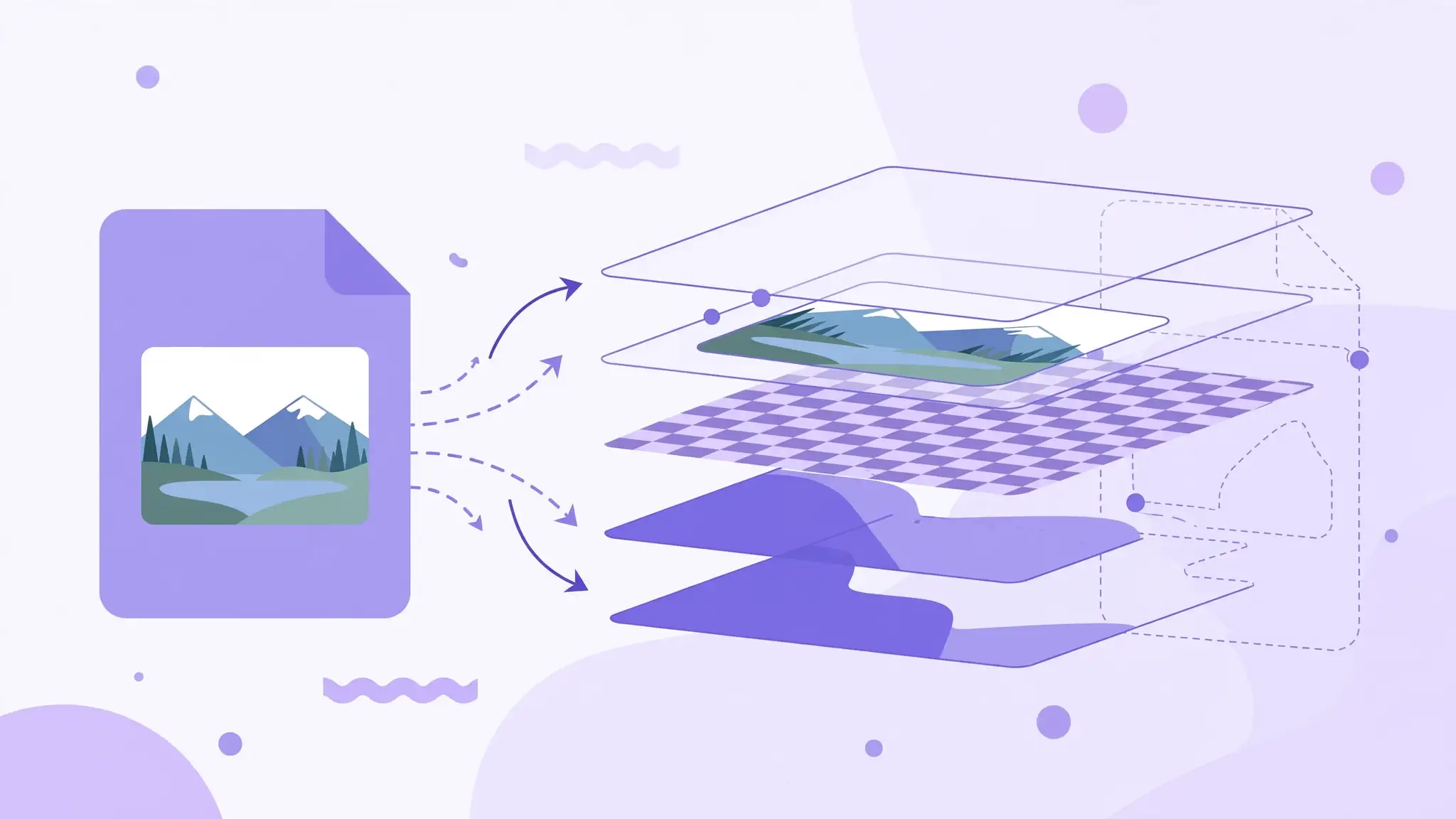
It's transparency. JPG physically cannot store it — every pixel is just red, green, blue, with no fourth channel for opacity. PNG carries a full alpha channel, so each pixel can be anything from fully transparent to fully opaque. That's why your logo dropped onto a colored website banner shows an ugly white box as a JPG, and floats cleanly as a PNG.
Important nuance: converting alone doesn't create transparency. A JPG of a product on a white background becomes a PNG with a white background — same pixels, new container. What the conversion gives you is a format that can hold transparency once you remove the background. Convert first, cut out second.
3 Situations Where JPG to PNG Pays Off
Outside these three cases, you're usually better off leaving the file as JPG:
The editing case is underappreciated. Designers call it generation loss: open a JPG, tweak it, save, repeat five times, and the image visibly degrades. Convert to PNG once at the start of your editing pipeline, do all your work losslessly, and export to JPG only at the very end.
- You need transparency — logos, icons, product cutouts, or UI assets that sit on varied backgrounds.
- You'll edit repeatedly — every JPG re-save compounds quality loss; PNG survives unlimited edit-and-save cycles with zero decay.
- It's flat graphics, text, or screenshots — sharp edges and solid colors are exactly where JPG artifacts show and PNG compresses well while staying crisp.
What Converting Won't Do: The Honest Truth
Let's kill the biggest myth: converting JPG to PNG does not improve image quality. The pixels that JPG compression discarded are gone forever — a lossless container has nothing to rebuild them from. You can't un-bake a cake. What PNG does is freeze the current quality so no further damage happens.
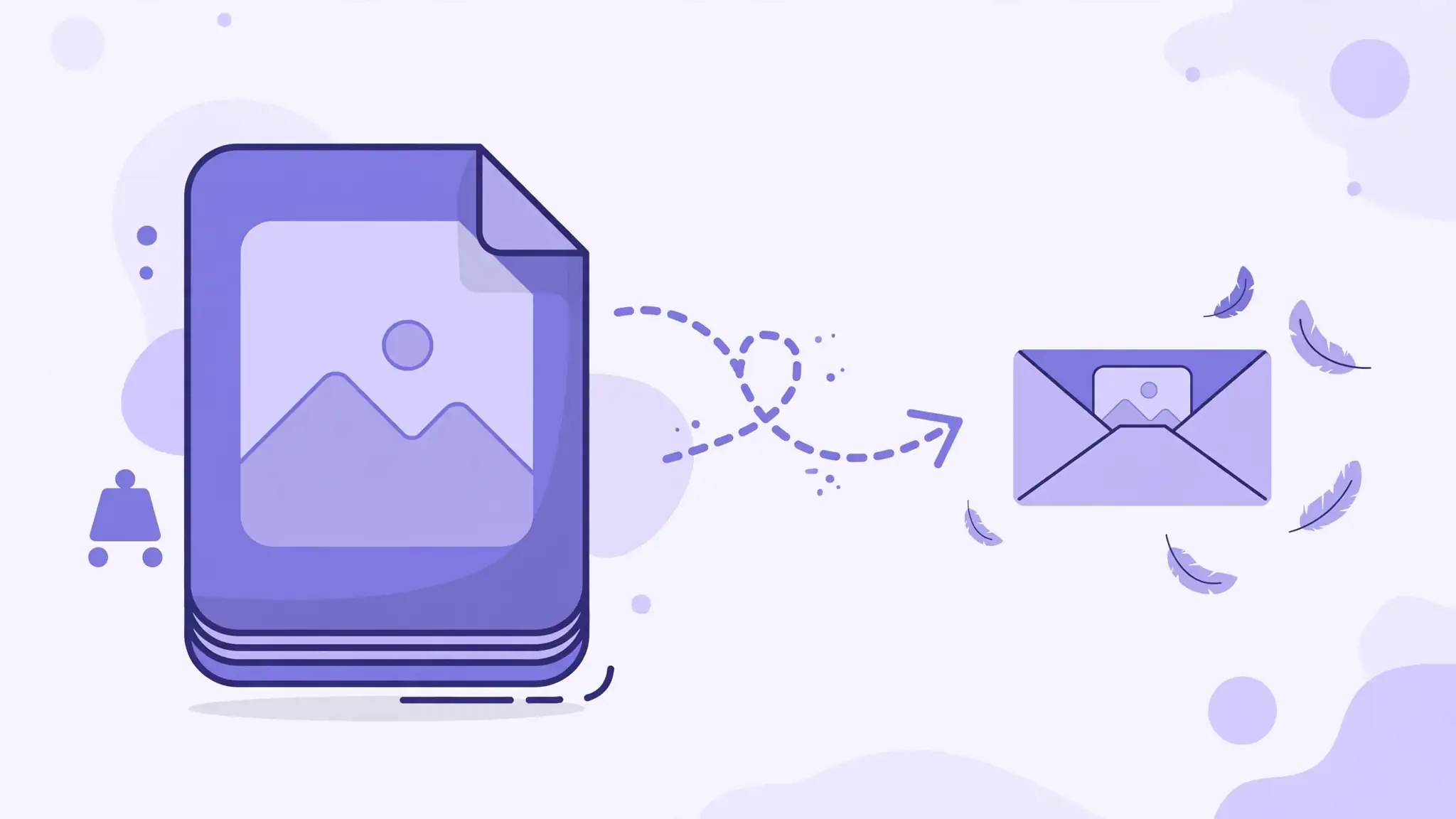
Similarly, it won't make anything transparent by itself, and it won't make the file smaller — expect the PNG to be 2-5x larger than the source JPG for photographs, since lossless encoding of millions of color variations is expensive. If file size matters more than editability, convert to WebP instead.
How to Convert JPG to PNG in Seconds
The free JPG to PNG converter runs entirely in your browser — no uploads, no signup. Drop in your JPG, PNG is selected as output, and download. The filename mirrors the original, and EXIF metadata is preserved.
Pro workflow: convert to PNG, remove the background with the Background Remover, then place your transparent cutout anywhere. That two-step combo — convert, then cut out — is how designers prep logos and product shots daily. It takes under a minute and beats wrestling with JPG's limitations every single time.
- Drop your JPG into the converter (single file or a whole batch).
- PNG output is selected — no settings to fiddle with, since PNG is lossless.
- Download your PNG. Use it as your editing master or transparency-ready canvas.
Why Is My PNG So Much Bigger? (It's Normal)
First-timers always ask this. A 400KB JPG photo can become a 2MB PNG, and nothing went wrong — that's the expected cost of lossless quality. JPG achieves small sizes by throwing away data your eyes won't miss; PNG must encode every pixel exactly. For a photograph with millions of subtle color variations, that's a lot of data.
If the size shocks you, ask whether you needed PNG at all. For web photos without transparency, WebP gives you near-PNG quality at JPG-like sizes. Reserve PNG for the three cases above — transparency, editing masters, and crisp graphics — and you'll never feel the file-size pain.