What can you do with this tool?
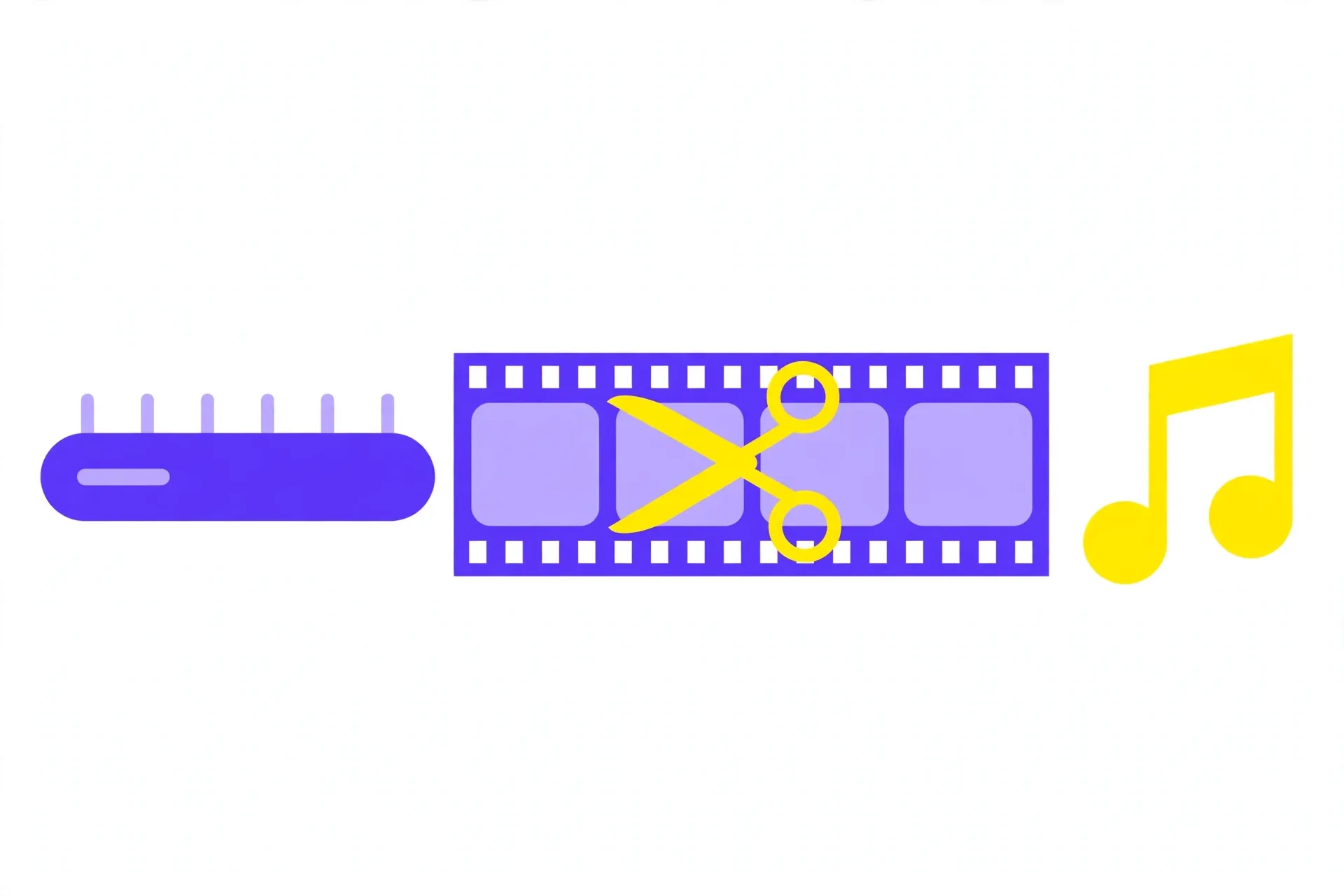
This tool does three useful jobs in one place. You can trim a video down to the part you actually want, pull the audio out of a video and save it as an MP3, or shrink a long clip into something small enough to send on WhatsApp.
Trimming is the most common job. Every phone is full of videos with a few good seconds buried between a long start and a shaky ending — cutting those away leaves a clip worth sharing.
Extracting audio is useful too. A lecture, a song, or a voice note recorded as video can be saved as a small MP3 you can listen to anywhere, without keeping the whole video file.
How to trim a video in your browser
Open the Video Trimmer and MP3 Converter and upload your video. It opens in your browser, and you will see the video with a timeline below it.
Drag the start and end handles on the timeline to mark the part you want to keep. Play the video back to check that the cut starts and ends where you expect — a second of extra footage at either end is better than cutting off the good part.
Download the trimmed clip. It is saved as a video file you can share, upload, or send to a friend.
- Upload your video in the browser — no signup needed
- Drag the handles to mark the part to keep
- Preview the cut, then download the trimmed clip
How to extract MP3 audio from a video
Upload the video that contains the audio you want. This works for anything from a song clip to a recorded lecture or a voice message saved as video.
Choose the MP3 option. The tool takes the audio track out of the video and saves it as an MP3 file, leaving the pictures behind.
Download the MP3. It is much smaller than the original video, so it is easy to store, share, or listen to on any device that plays music.
Shrinking a clip for WhatsApp
WhatsApp and other messaging apps struggle with long, heavy video files. A two-minute clip from a modern phone can be too large to send, and it eats up the receiver's data too.
The simplest fix is to trim the clip. Cutting a two-minute video down to the thirty seconds that matter usually shrinks the file enough to send without any trouble.
Keep the clip short and to the point. A short clip sends quickly, plays smoothly, and is far more likely to be watched all the way through.
- Trim the clip to the seconds that matter
- Shorter clips send faster and play smoothly
- Keep the original until you are happy with the trimmed copy
Tips for a clean result
Leave a little extra at both ends of your cut. Trimming exactly to the frame you want often chops off the start of a word or the beginning of an action — a second of breathing room looks and sounds better.
Always play the trimmed result before you send it. Check that the picture and sound stay in sync and that nothing you wanted to keep got cut.
Keep the original video until you are happy with the trimmed copy. Once you are sure the new file is right, you can delete the original to free up space.