What is HEIC and why can't I open it?
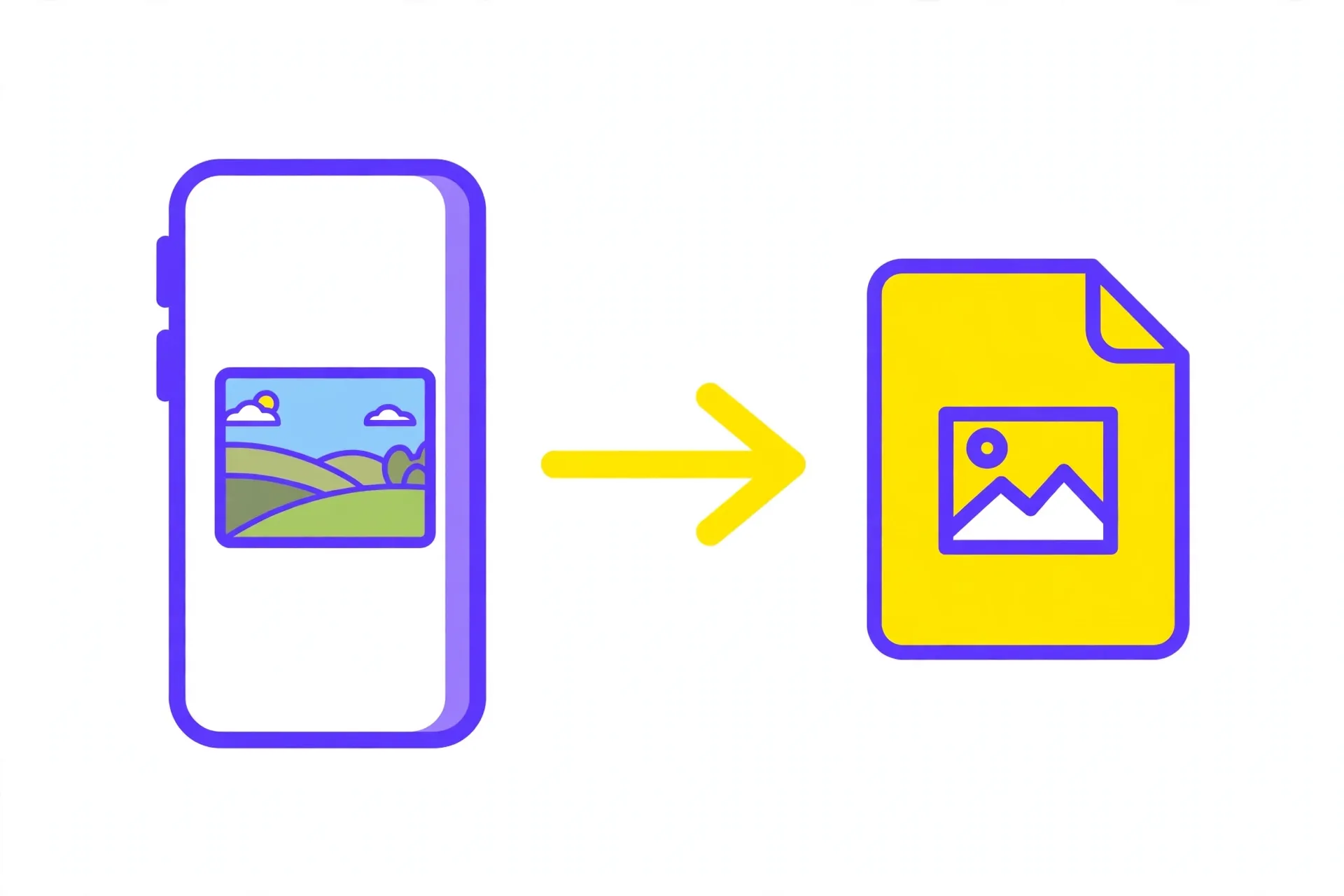
HEIC is the photo format iPhones use by default. It keeps photos looking sharp while using less storage space than older formats, which is why Apple chose it.
The problem is that many apps, websites and older devices do not recognise HEIC. You might take a photo on your iPhone and then find that a website refuses the upload, an app cannot open it, or a friend on another phone cannot view it.
JPG does not have that problem. Almost every app, website and device on earth can open a JPG, which is why converting is the simplest fix when a HEIC file will not open where you need it.
How to convert HEIC to JPG in your browser
Open the HEIC to JPG Converter and upload your photo. The file opens in your browser — nothing is sent to a server.
Choose your output format. JPG is the best choice for sharing, uploading and everyday use. PNG is the better choice when you want a lossless copy of the photo.
Download the converted file. It is ready to use anywhere — attach it to an email, upload it to a form, or send it to a friend on any phone.
- Upload your .heic or .heif photo in the browser
- Pick JPG for sharing, PNG for a lossless copy
- Download the converted file and use it anywhere
HEIC vs JPG: what changes?
The converted JPG shows the same photo — the same colours, the same framing, the same moment. For viewing and sharing, you will not notice a difference.
The file itself does change. JPG uses a different kind of compression, so the converted file may be larger or smaller than the original HEIC. That is normal and does not mean anything went wrong.
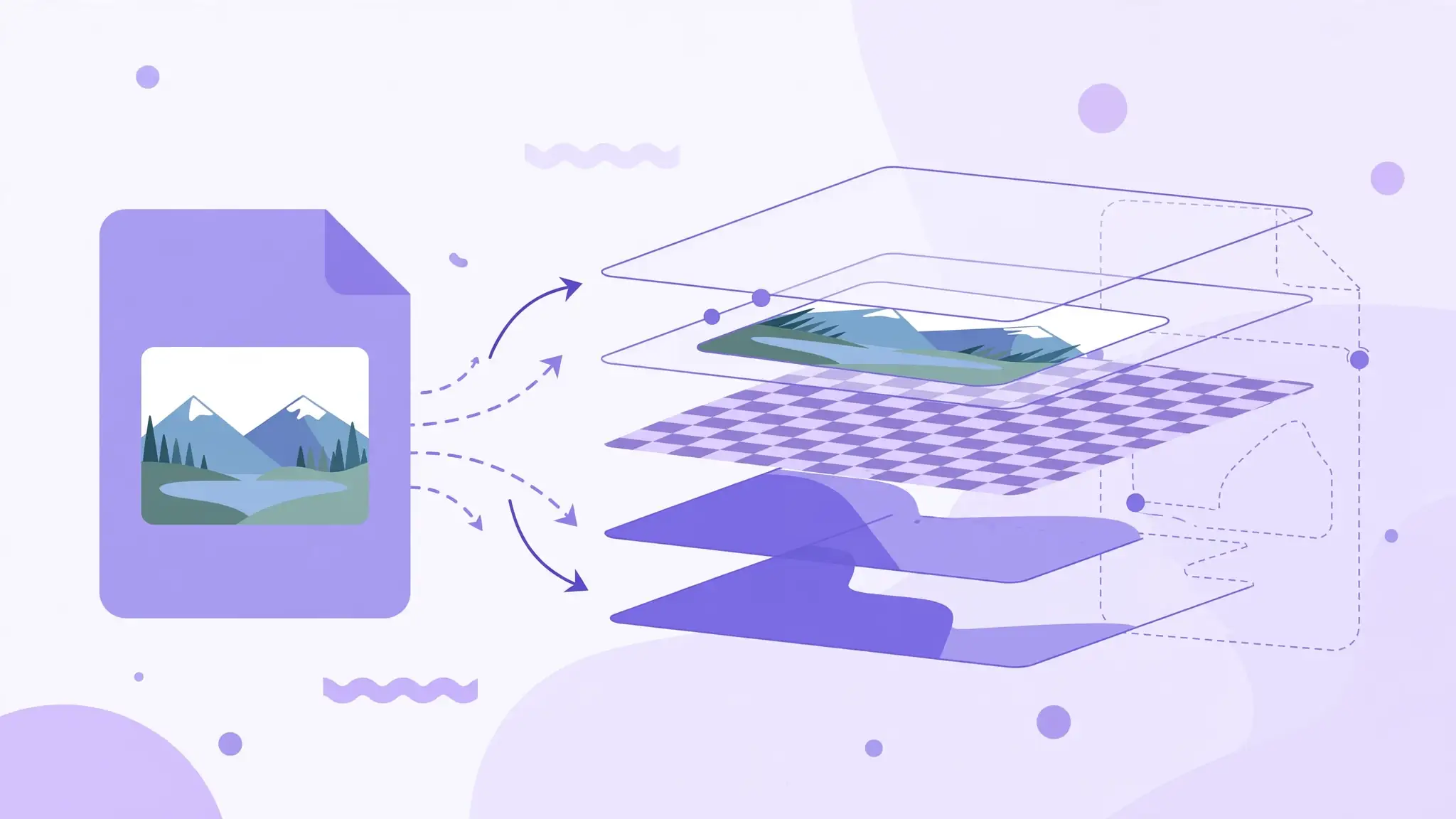
One thing worth knowing: HEIC can store extra information, such as depth data for portrait-mode photos, that a plain JPG does not keep. If you need that data for editing, keep the original HEIC file and convert a copy instead.
When to choose PNG instead
Choose JPG when you want the photo to open everywhere — uploading to a website, attaching to an email, or sending to someone on a different phone. JPG files are also usually smaller, which helps when a form limits upload size.
Choose PNG when you want to keep every pixel exactly as it was, for example if you plan to edit the photo further. PNG files are larger, so they are not the best choice for sharing or uploading.
For most people, most of the time, JPG is the right answer. Pick PNG only when you have a specific reason to keep the photo uncompressed.
What to do after converting
After converting, open the new file and check it before you use it. Make sure it opens on the device or website where the original HEIC would not.
Keep your original HEIC file as a backup, especially if the photo matters to you. Storage is cheap, and the original is the only copy that holds everything the iPhone recorded.
If you have many photos to convert, work through them one at a time and check each result. A quick check now is easier than discovering a bad conversion after you have deleted the original.
- Open the converted file to confirm it works
- Keep the original HEIC as a backup
- Check each conversion before deleting anything